> ## Documentation Index
> Fetch the complete documentation index at: https://docs.anchorage.com/llms.txt
> Use this file to discover all available pages before exploring further.
# Device and login recovery
> Move your user to a new phone, replace a device, regain access after losing one, or fix an enrollment error.
Your access to Anchorage Digital is tied to cryptographic keys held on your enrolled device, so getting back in after you lose or replace it follows a specific path. This guide covers replacing a device, recovering when you have no second device, and fixing enrollment errors.
## How device access works
Each enrolled device holds a unique key in its Secure Enclave that identifies you. That key can't leave the device, so you can't simply sign in on new hardware—you re-enroll the new device instead. Sensitive recovery steps are protected by quorum approval. For how the app secures your account, see [Mobile app](/knowledge-base/platform/users/mobile-app) and [Security](/knowledge-base/platform/users/security).
## Replace a device or move to a new phone
Whether you're upgrading your phone, replacing a device, or moving your user to new hardware, the path depends on whether your previous device is still available.
### If you still have your old device
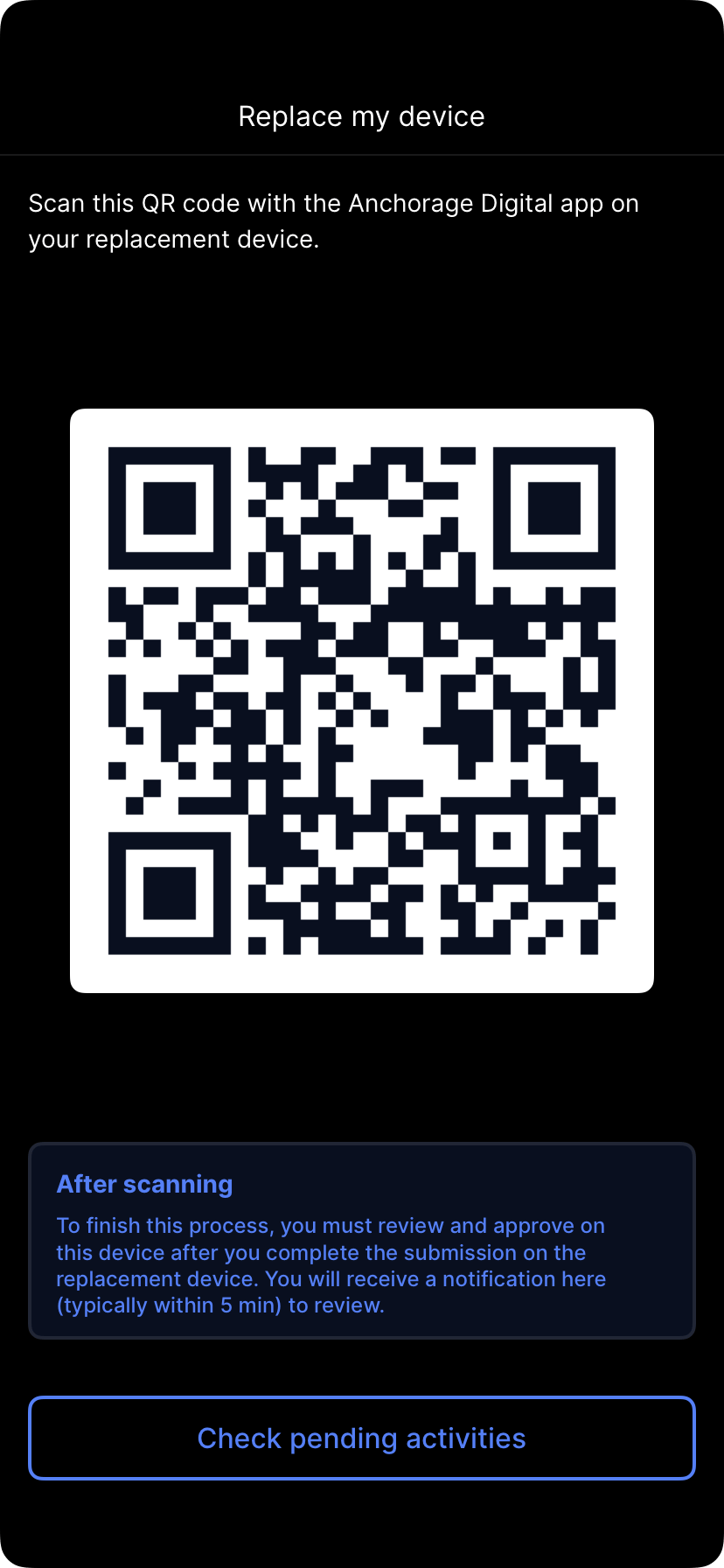
On the device that's still enrolled, go to **Settings** and tap **Replace my device** to generate a QR code.
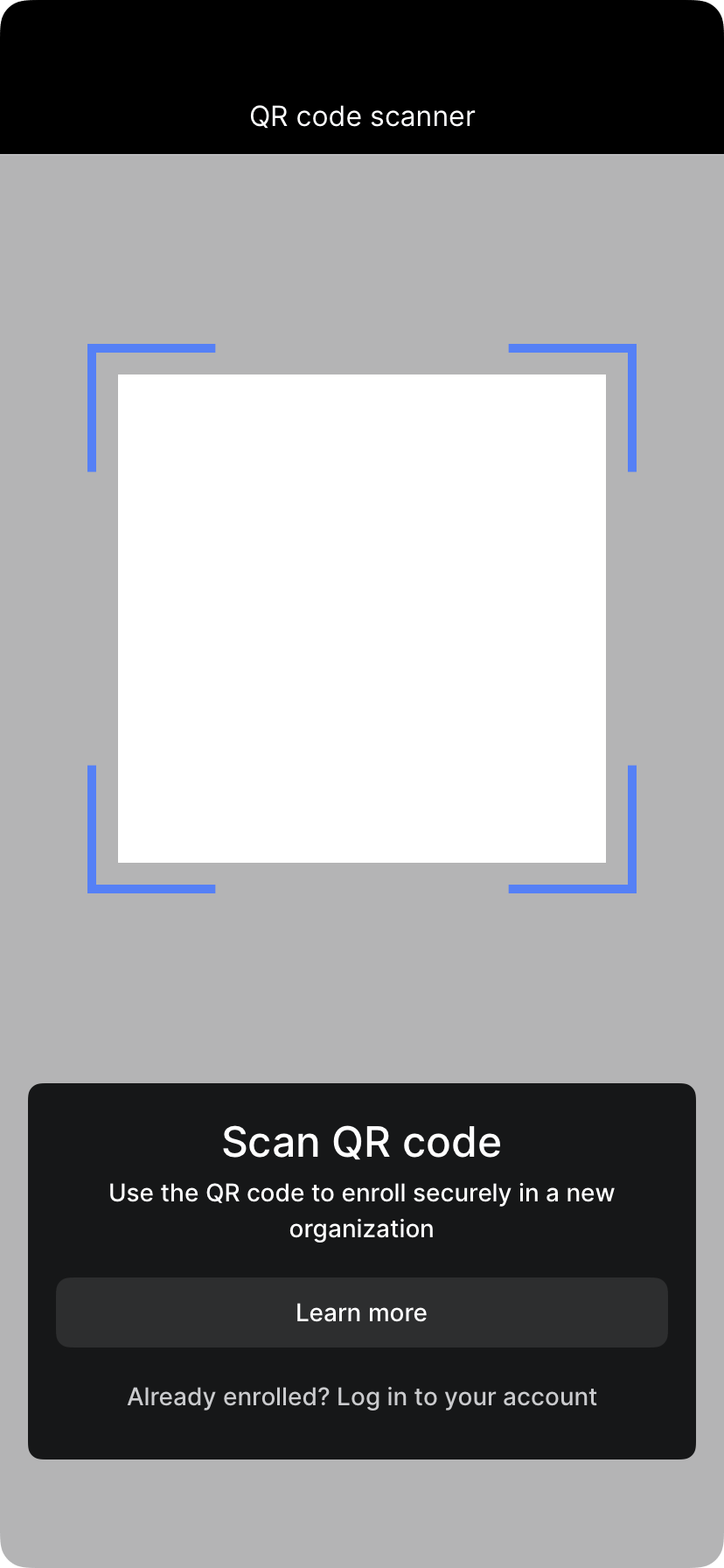
Install the app from the App Store on the new device, then scan the QR code from your old device to link the new one.
Follow the prompts to submit biometric approval.
### If your old device is gone
If the device was marked as lost, an administrator unmarks it before you can re-enroll.
An administrator removes the lost status on your account so a new device can enroll.
Install the app from the App Store, then scan the enrollment QR code provided by your administrator.
Re-enrollment is quorum-approved. Once approved, your new device has access.
## Recover access with no second device
If you can't access the organization and have no second enrolled device, use **partial quorum recovery**: you set up a replacement device and other members of your quorum approve the recovery.
Use an iPhone or iPad with Face ID enabled. An old iPhone or an iPad works.
Install the app and begin recovery. With no second device, you'll see a replace-device option.
Other quorum members approve the recovery from their enrolled devices. Quorum approval is required, which is why recovery isn't instant.
## Fix a corrupted-key error
If you see a corrupted private key error, reset the enrollment on the device and start fresh.
The reset gesture erases the enrollment on the device. You'll need to re-enroll with a new QR code afterward, so only do this when recovering from a corrupted key.
Perform the 10-tap gesture to erase the enrollment on the device.
Ask an administrator to mark the device as lost so it can be re-enrolled.
Request a fresh enrollment QR code from your administrator and scan it to re-enroll. Re-enrollment is quorum-approved.
## Troubleshoot QR scanning and biometrics
If a QR code won't scan or you see a "no usable data found" error, work through these checks:
* Use the in-app QR scanner—tap the scanner icon in the top-right—rather than your phone's camera app.
* Check that the app has camera permissions in your device settings.
* Update the app to the latest version. See [Updating the app](/knowledge-base/platform/users/mobile-app#updating-the-app).
* Request a fresh QR code from your administrator if the previous one expired.