> ## Documentation Index
> Fetch the complete documentation index at: https://docs.anchorage.com/llms.txt
> Use this file to discover all available pages before exploring further.
# Using the Staking tab
> View staking positions, pending stake and unstake amounts, and claimable rewards for a wallet, and stake, unstake, claim, or collect directly from the position.
Every wallet that holds a stakeable asset now has a **Staking** tab in the web dashboard. It brings your positions, pending amounts, claimable rewards, and staking actions into one place.
 ## Open the Staking tab
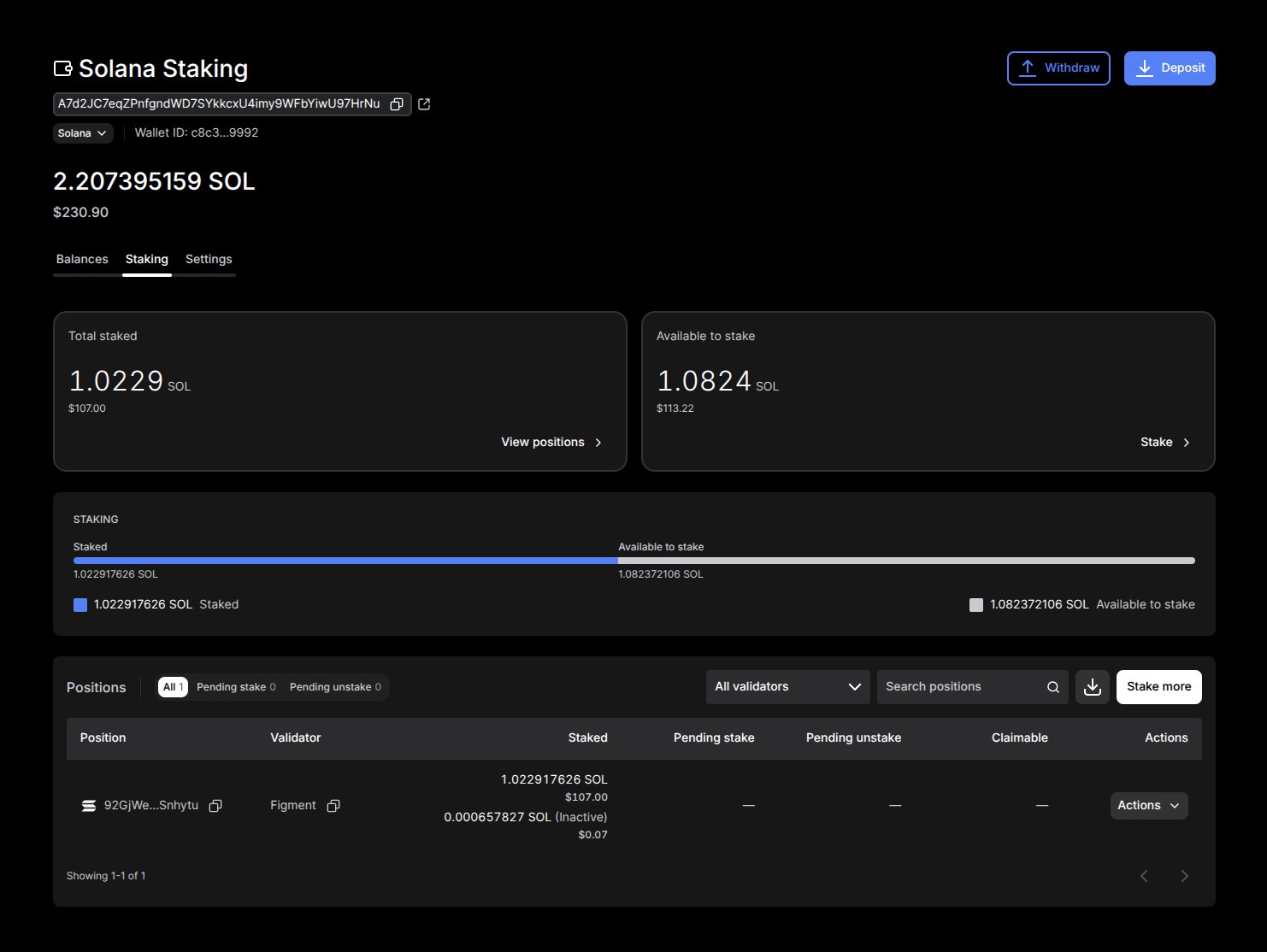
Go to the vault, open the wallet, then select **Staking** in the tab bar next to **Balances** and **Settings**.
The tab only appears on wallets that hold at least one stakeable asset. If a wallet holds more than one, a row of asset cards at the top of the tab shows each asset with its total staked amount. Select a card to switch the whole tab to that asset. The wallet's native asset is listed first when it has a staked balance.
## Read the summary
Two cards at the top of the tab summarize the selected asset, each with its USD value underneath:
| Card | What it shows | Card action |
| :- | :- | :- |
| Total staked | The amount currently staked across all positions | **View positions** scrolls you to the Positions table |
| Available to stake | The wallet balance you can stake right now | **Stake** opens the staking workflow |
Below the cards, the **Staking** composition bar splits the asset into **Staked**, **Pending stake**, **Pending unstake**, **Claimable**, and **Available to stake** segments, with the amount of each shown in the legend.
## Review your positions
The **Positions** table lists every staking position for the selected asset.
| Column | What it shows |
| :- | :- |
| Position | The position identifier, with a copy control, and the remaining lock or unbonding duration when the network reports one |
| Validator | The validator name, or its address when no name is available, with a copy control |
| Staked | The active stake, plus any inactive stake marked **(Inactive)** |
| Pending stake | Stake waiting to activate on the network |
| Pending unstake | Stake waiting to exit, including amounts in an unbonding period |
| Claimable | Rewards you can claim to the wallet now |
| Actions | The action menu for that position (see [Act on a position](#act-on-a-position)) |
A dash in an amount column means the position has nothing in that state. The footer shows which rows are on the current page, and you can page through larger sets with the arrows.
## Filter positions
Use the controls above the table to narrow a long list. The filters combine, and the table resets to the first page each time you change one.
* **State pills**: select **All**, **Pending stake**, or **Pending unstake** to show only positions in that state. Each pill shows a count of matching positions.
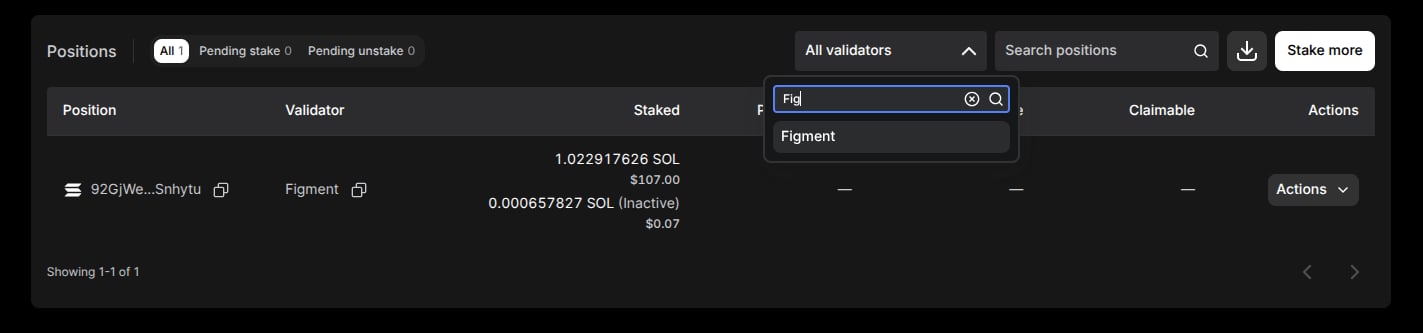
* **Validator**: select a validator from the dropdown to show only positions delegated to it. Type in the dropdown's search box to find one quickly. **All validators** is the default.
* **Search positions**: type part of a position identifier or validator name to find a specific position.
## Open the Staking tab
Go to the vault, open the wallet, then select **Staking** in the tab bar next to **Balances** and **Settings**.
The tab only appears on wallets that hold at least one stakeable asset. If a wallet holds more than one, a row of asset cards at the top of the tab shows each asset with its total staked amount. Select a card to switch the whole tab to that asset. The wallet's native asset is listed first when it has a staked balance.
## Read the summary
Two cards at the top of the tab summarize the selected asset, each with its USD value underneath:
| Card | What it shows | Card action |
| :- | :- | :- |
| Total staked | The amount currently staked across all positions | **View positions** scrolls you to the Positions table |
| Available to stake | The wallet balance you can stake right now | **Stake** opens the staking workflow |
Below the cards, the **Staking** composition bar splits the asset into **Staked**, **Pending stake**, **Pending unstake**, **Claimable**, and **Available to stake** segments, with the amount of each shown in the legend.
## Review your positions
The **Positions** table lists every staking position for the selected asset.
| Column | What it shows |
| :- | :- |
| Position | The position identifier, with a copy control, and the remaining lock or unbonding duration when the network reports one |
| Validator | The validator name, or its address when no name is available, with a copy control |
| Staked | The active stake, plus any inactive stake marked **(Inactive)** |
| Pending stake | Stake waiting to activate on the network |
| Pending unstake | Stake waiting to exit, including amounts in an unbonding period |
| Claimable | Rewards you can claim to the wallet now |
| Actions | The action menu for that position (see [Act on a position](#act-on-a-position)) |
A dash in an amount column means the position has nothing in that state. The footer shows which rows are on the current page, and you can page through larger sets with the arrows.
## Filter positions
Use the controls above the table to narrow a long list. The filters combine, and the table resets to the first page each time you change one.
* **State pills**: select **All**, **Pending stake**, or **Pending unstake** to show only positions in that state. Each pill shows a count of matching positions.
* **Validator**: select a validator from the dropdown to show only positions delegated to it. Type in the dropdown's search box to find one quickly. **All validators** is the default.
* **Search positions**: type part of a position identifier or validator name to find a specific position.
 When no position matches, the table shows a no-results message. Clear the search or set the pills and dropdown back to **All** to see every position again.
## Act on a position
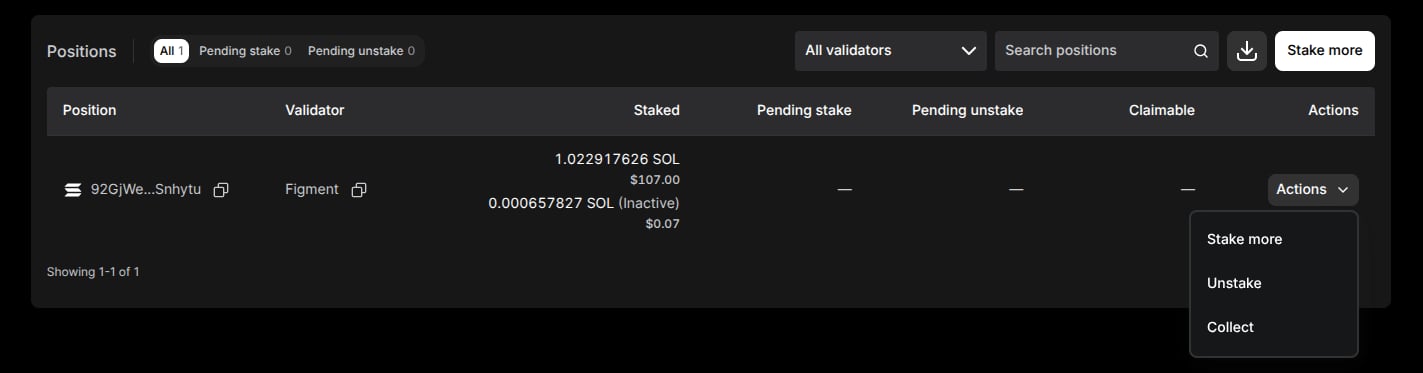
Each row has an **Actions** menu at the right. The options depend on the asset and on the state of that position:
* **Stake more** adds to this position with the same validator.
* **Unstake** starts an unstake for this position.
* **Claim** sends claimable rewards to the wallet.
* **Collect** moves inactive stake back to the wallet, on networks that separate the two steps.
Some assets add network-specific options to the same menu. An option you can't use right now stays visible but disabled, and its subtext explains why—for example, you don't have staking permission in this vault, or the wallet has an operation in progress that blocks staking.
When no position matches, the table shows a no-results message. Clear the search or set the pills and dropdown back to **All** to see every position again.
## Act on a position
Each row has an **Actions** menu at the right. The options depend on the asset and on the state of that position:
* **Stake more** adds to this position with the same validator.
* **Unstake** starts an unstake for this position.
* **Claim** sends claimable rewards to the wallet.
* **Collect** moves inactive stake back to the wallet, on networks that separate the two steps.
Some assets add network-specific options to the same menu. An option you can't use right now stays visible but disabled, and its subtext explains why—for example, you don't have staking permission in this vault, or the wallet has an operation in progress that blocks staking.
 To stake without picking a position, use the **Stake more** button at the right of the toolbar. It opens the same workflow as the **Available to stake** card, and on assets with more than one wallet-level action it opens a menu instead.
Selecting any option opens the staking flow for that asset. Review the details and submit, then endorse the operation in the iOS app—quorum approval is required under your vault's staking or default policy. See [Staking overview](/knowledge-base/platform/users/staking/overview) for how staking policies work.
## Export positions
Select the download icon in the toolbar to export the positions currently shown as a CSV file named after the asset, for example `ETH_staking_positions.csv`. The file includes the position identifier, the validator, and the staked, inactive, pending stake, pending unstake, and claimable amounts, each in the asset and in USD. Any filters you have applied also apply to the export.
Ethereum wallets that were staked through the original Ethereum staking flow show the **Total staked** and **Available to stake** cards with **Unstake** and **Stake** actions, but no Positions table.
## Related pages
* [Staking overview](/knowledge-base/platform/users/staking/overview) for how staking works, policies, and how to start a delegation
* [Reading balances](/knowledge-base/platform/users/web-dashboard/reading-balances) for what each staking-related balance label on the **Balances** tab means
* The asset pages under **Staking by assets** for unbonding periods, validators, and network-specific actions
## Related topics
- [Staking overview](/knowledge-base/platform/users/staking/overview.md)
- [MEZO staking](/knowledge-base/platform/users/staking/mezo.md)
- [CELO staking](/knowledge-base/platform/users/staking/celo.md)
- [STABLE staking](/knowledge-base/platform/users/staking/stable.md)
- [COSMOS staking](/knowledge-base/porto/staking/cosmos.md)
To stake without picking a position, use the **Stake more** button at the right of the toolbar. It opens the same workflow as the **Available to stake** card, and on assets with more than one wallet-level action it opens a menu instead.
Selecting any option opens the staking flow for that asset. Review the details and submit, then endorse the operation in the iOS app—quorum approval is required under your vault's staking or default policy. See [Staking overview](/knowledge-base/platform/users/staking/overview) for how staking policies work.
## Export positions
Select the download icon in the toolbar to export the positions currently shown as a CSV file named after the asset, for example `ETH_staking_positions.csv`. The file includes the position identifier, the validator, and the staked, inactive, pending stake, pending unstake, and claimable amounts, each in the asset and in USD. Any filters you have applied also apply to the export.
Ethereum wallets that were staked through the original Ethereum staking flow show the **Total staked** and **Available to stake** cards with **Unstake** and **Stake** actions, but no Positions table.
## Related pages
* [Staking overview](/knowledge-base/platform/users/staking/overview) for how staking works, policies, and how to start a delegation
* [Reading balances](/knowledge-base/platform/users/web-dashboard/reading-balances) for what each staking-related balance label on the **Balances** tab means
* The asset pages under **Staking by assets** for unbonding periods, validators, and network-specific actions
## Related topics
- [Staking overview](/knowledge-base/platform/users/staking/overview.md)
- [MEZO staking](/knowledge-base/platform/users/staking/mezo.md)
- [CELO staking](/knowledge-base/platform/users/staking/celo.md)
- [STABLE staking](/knowledge-base/platform/users/staking/stable.md)
- [COSMOS staking](/knowledge-base/porto/staking/cosmos.md)