> ## Documentation Index
> Fetch the complete documentation index at: https://docs.anchorage.com/llms.txt
> Use this file to discover all available pages before exploring further.
# Activity & transaction history
> View and track all operations and transactions across your vaults.
Activity shows a complete audit trail of every operation in your vaults—from deposits and withdrawals to policy changes and user management. Use activity to track status, verify transactions, and maintain compliance records.
## View activity
From the home screen, tap the **Activity** icon (looks like a timeline or history icon).
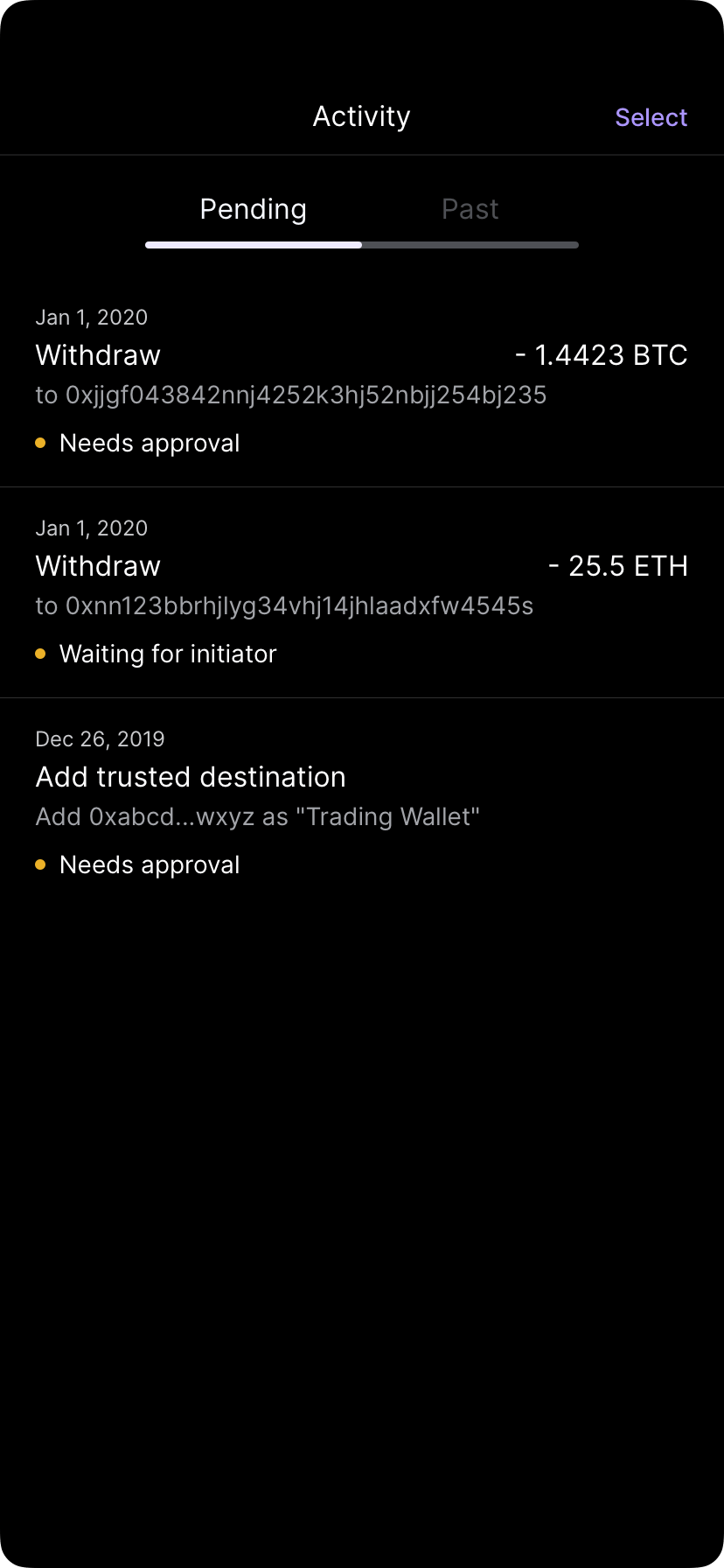 Activity displays recent operations in reverse chronological order (newest first).
Select any transaction to see full details, including status, approvals, and blockchain information.
## Activity types
Activity includes all operations:
* **Deposits** — Assets received into your vaults
* **Withdrawals** — Assets sent from your vaults
* **Transfers** — Movements between your vaults or to trusted partners
* **Swaps** — Asset exchanges (if stablecoin conversion is enabled)
* **User management** — Users added, removed, or had permissions changed
* **Policy changes** — Updates to admin policies, quorum rules, or vault policies
* **Settings changes** — Changes to organization settings or vault configurations
* **Approvals** — Operations approved or rejected
## Transaction status
Each transaction shows its current status:
| Status | Meaning |
| :--------------------------- | :----------------------------------------------- |
| **Pending initiation** | Awaiting the initiator's biometric approval |
| **Pending approval** | Initiated, awaiting quorum approval |
| **Pending Anchorage review** | Awaiting Anchorage Digital compliance review |
| **Approved** | All approvals complete, ready to broadcast |
| **Broadcasting** | Being submitted to the blockchain |
| **On-chain pending** | Submitted to blockchain, awaiting confirmation |
| **Confirmed** | Blockchain confirmed the transaction |
| **Failed** | Transaction was rejected or failed at some stage |
## Transaction details
When you tap a transaction, you'll see:
* **Basic info** — Type (deposit, withdrawal, etc.), amount, asset, timestamp
* **Parties involved** — Who initiated and who approved
* **Approvals** — List of approvers and their sign-off times
* **Blockchain info** — Transaction hash (if on-chain), network, confirmation count
* **Comments** — Any notes added during initiation
* **History** — Timeline of when the transaction entered each status
## Filter and search
Use the filters in activity to find specific transactions:
* **Asset type** — Show only transactions for a specific asset
* **Type** — Filter by operation type (deposits, withdrawals, policy changes, etc.)
* **Date range** — Show transactions within a specific time period
* **Status** — View only pending, completed, or failed operations
* **Vault** — View activity for a specific vault
Activity displays recent operations in reverse chronological order (newest first).
Select any transaction to see full details, including status, approvals, and blockchain information.
## Activity types
Activity includes all operations:
* **Deposits** — Assets received into your vaults
* **Withdrawals** — Assets sent from your vaults
* **Transfers** — Movements between your vaults or to trusted partners
* **Swaps** — Asset exchanges (if stablecoin conversion is enabled)
* **User management** — Users added, removed, or had permissions changed
* **Policy changes** — Updates to admin policies, quorum rules, or vault policies
* **Settings changes** — Changes to organization settings or vault configurations
* **Approvals** — Operations approved or rejected
## Transaction status
Each transaction shows its current status:
| Status | Meaning |
| :--------------------------- | :----------------------------------------------- |
| **Pending initiation** | Awaiting the initiator's biometric approval |
| **Pending approval** | Initiated, awaiting quorum approval |
| **Pending Anchorage review** | Awaiting Anchorage Digital compliance review |
| **Approved** | All approvals complete, ready to broadcast |
| **Broadcasting** | Being submitted to the blockchain |
| **On-chain pending** | Submitted to blockchain, awaiting confirmation |
| **Confirmed** | Blockchain confirmed the transaction |
| **Failed** | Transaction was rejected or failed at some stage |
## Transaction details
When you tap a transaction, you'll see:
* **Basic info** — Type (deposit, withdrawal, etc.), amount, asset, timestamp
* **Parties involved** — Who initiated and who approved
* **Approvals** — List of approvers and their sign-off times
* **Blockchain info** — Transaction hash (if on-chain), network, confirmation count
* **Comments** — Any notes added during initiation
* **History** — Timeline of when the transaction entered each status
## Filter and search
Use the filters in activity to find specific transactions:
* **Asset type** — Show only transactions for a specific asset
* **Type** — Filter by operation type (deposits, withdrawals, policy changes, etc.)
* **Date range** — Show transactions within a specific time period
* **Status** — View only pending, completed, or failed operations
* **Vault** — View activity for a specific vault
 ## Pending approvals
Transactions awaiting approval show a **Pending approval** badge. To see what needs approval:
Pending items appear at the top of activity with a **Pending** badge.
View who still needs to approve and when it expires.
If you're a designated approver, you can approve directly in the activity view (if your role permits).
If approvals are delayed, contact your organization's approvers directly.
Pending approvals typically expire after 24 hours if not completed. Once expired, the operation must be resubmitted.
## Failed or stuck transactions
If a transaction failed or is stuck:
1. **Check the status** — Tap the transaction to see where it failed
2. **Common reasons for failure**:
* Insufficient balance or gas fees
* Policy rejection by compliance team
* Blockchain network congestion (on-chain pending)
* Approval timeout (older than 24 hours)
3. **Retry options** — Depending on the failure reason, you may be able to resubmit or contact support
## Export activity
To download your activity for accounting or compliance purposes:
Tap the filter icon to narrow down what you want to export.
Tap **Export** or **Download** (availability depends on your permissions).
Select CSV or PDF format.
The file will download and be saved locally.
Export may require admin approval or specific permissions. Contact your administrator if you don't see the export option.
## Activity and compliance
Your activity log serves as an audit trail for:
* **Regulatory reporting** — Compliance with AML/KYC requirements
* **Internal audits** — Verifying who initiated each operation and when
* **Tax reporting** — Tracking cost basis and transaction dates
* **Dispute resolution** — Proving when transactions were initiated and approved
Preserve your activity records for regulatory compliance periods.
## Pending approvals
Transactions awaiting approval show a **Pending approval** badge. To see what needs approval:
Pending items appear at the top of activity with a **Pending** badge.
View who still needs to approve and when it expires.
If you're a designated approver, you can approve directly in the activity view (if your role permits).
If approvals are delayed, contact your organization's approvers directly.
Pending approvals typically expire after 24 hours if not completed. Once expired, the operation must be resubmitted.
## Failed or stuck transactions
If a transaction failed or is stuck:
1. **Check the status** — Tap the transaction to see where it failed
2. **Common reasons for failure**:
* Insufficient balance or gas fees
* Policy rejection by compliance team
* Blockchain network congestion (on-chain pending)
* Approval timeout (older than 24 hours)
3. **Retry options** — Depending on the failure reason, you may be able to resubmit or contact support
## Export activity
To download your activity for accounting or compliance purposes:
Tap the filter icon to narrow down what you want to export.
Tap **Export** or **Download** (availability depends on your permissions).
Select CSV or PDF format.
The file will download and be saved locally.
Export may require admin approval or specific permissions. Contact your administrator if you don't see the export option.
## Activity and compliance
Your activity log serves as an audit trail for:
* **Regulatory reporting** — Compliance with AML/KYC requirements
* **Internal audits** — Verifying who initiated each operation and when
* **Tax reporting** — Tracking cost basis and transaction dates
* **Dispute resolution** — Proving when transactions were initiated and approved
Preserve your activity records for regulatory compliance periods.