> ## Documentation Index
> Fetch the complete documentation index at: https://docs.anchorage.com/llms.txt
> Use this file to discover all available pages before exploring further.
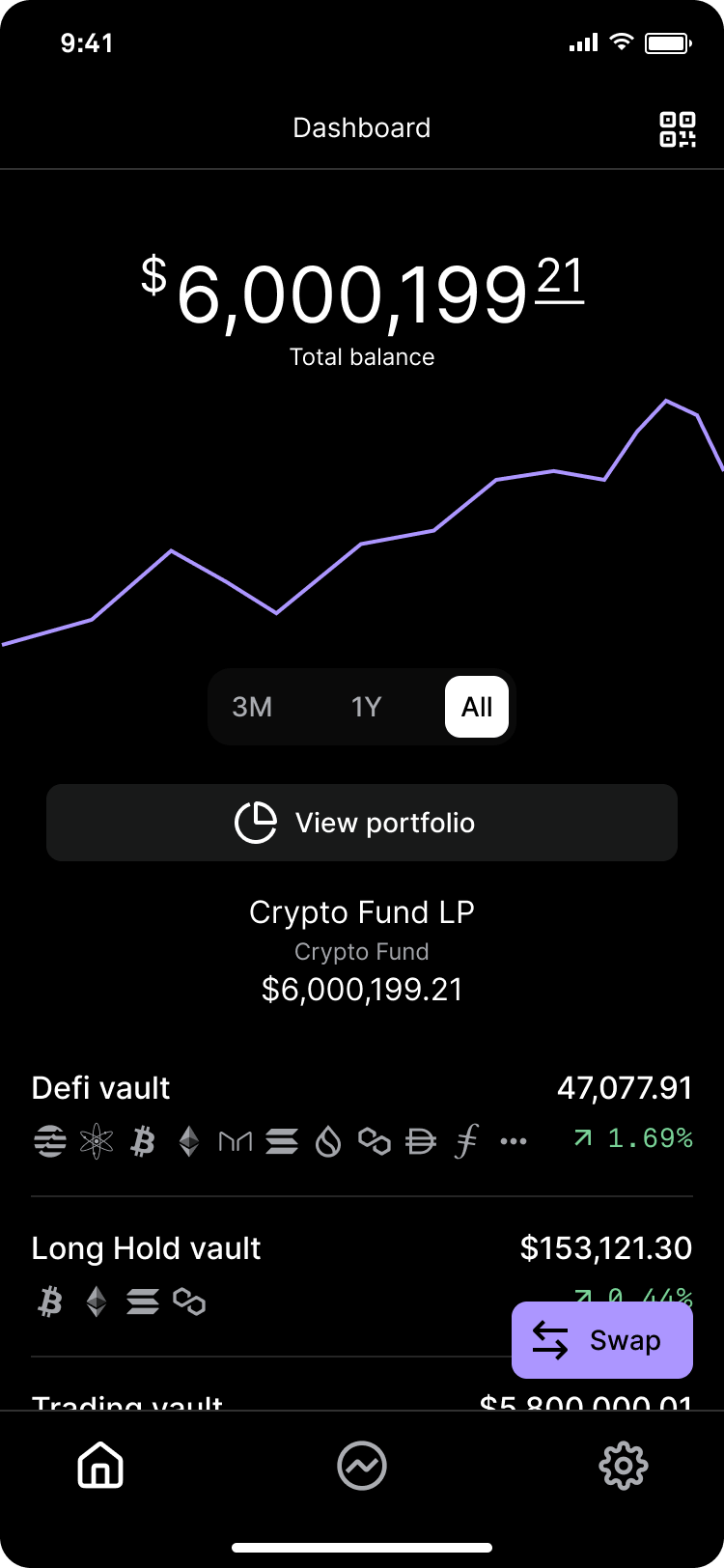
# Mobile app & browser extension
> Download the Porto iOS app and set up the browser extension.
## iOS app download
Download the Porto by Anchorage Digital app from the Apple App Store by searching for "Porto by Anchorage Digital" and tapping **Get**.
You may need to upgrade to the latest iOS software to download the app. The app is available in supported countries.
## Browser extension
The Anchorage Digital browser extension connects your Porto wallets directly to decentralized apps (dApps).
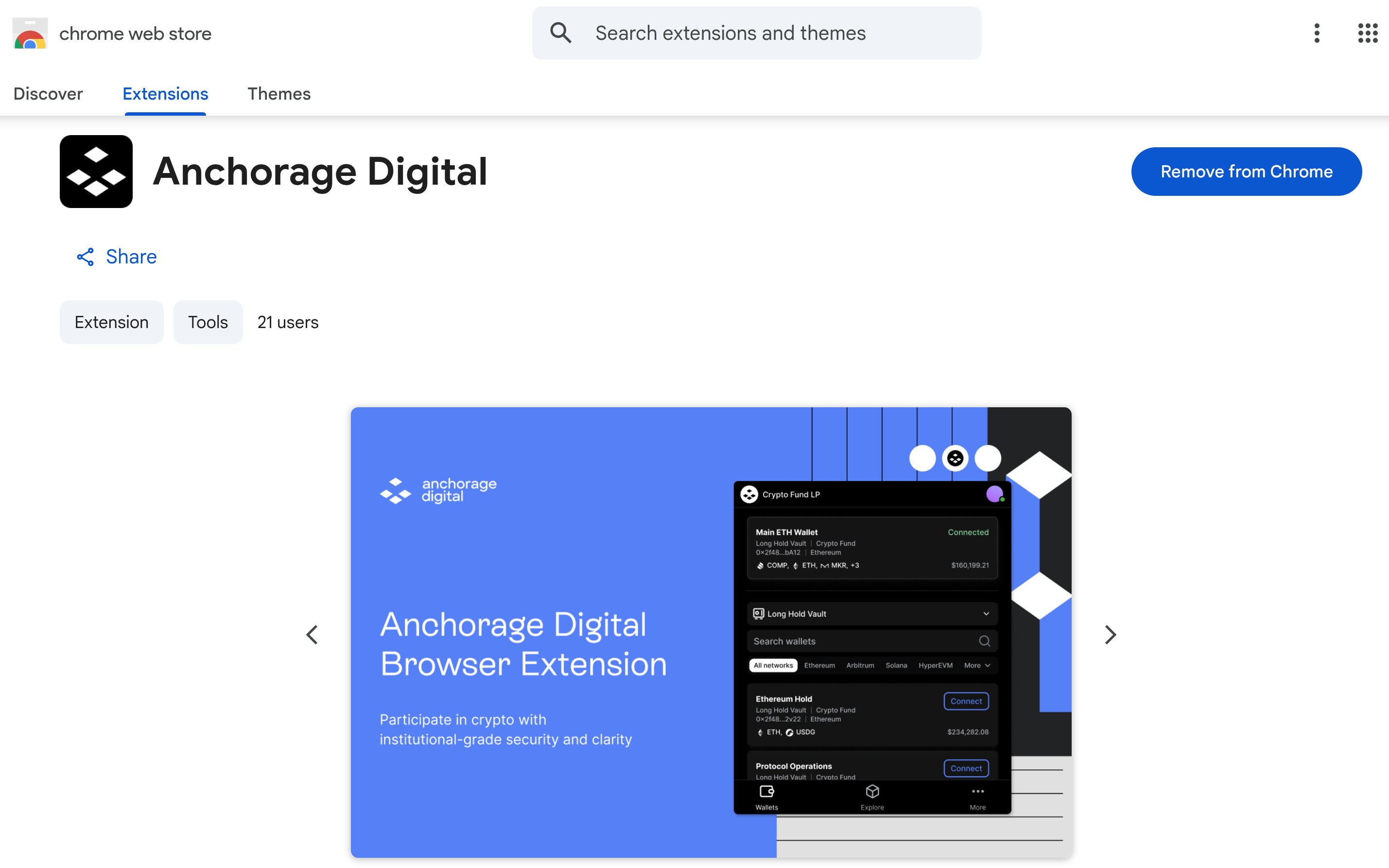 [Download the Anchorage Digital Browser Extension for Chrome](#)
### Log in to your organization
Log in using the same credentials as your web dashboard.
Open the Anchorage Digital browser extension in Chrome.
On your Porto iOS app, tap **Settings**, then tap **Web dashboard login**, and select **QR Code**.
Scan the QR code displayed in the browser extension.
Review the location shown on your device and allow access to complete login.
[Download the Anchorage Digital Browser Extension for Chrome](#)
### Log in to your organization
Log in using the same credentials as your web dashboard.
Open the Anchorage Digital browser extension in Chrome.
On your Porto iOS app, tap **Settings**, then tap **Web dashboard login**, and select **QR Code**.
Scan the QR code displayed in the browser extension.
Review the location shown on your device and allow access to complete login.
 ### Enabled networks
New chains are added to the browser extension regularly. You can view all enabled chains in the **Networks** filter within the **Wallets** tab.
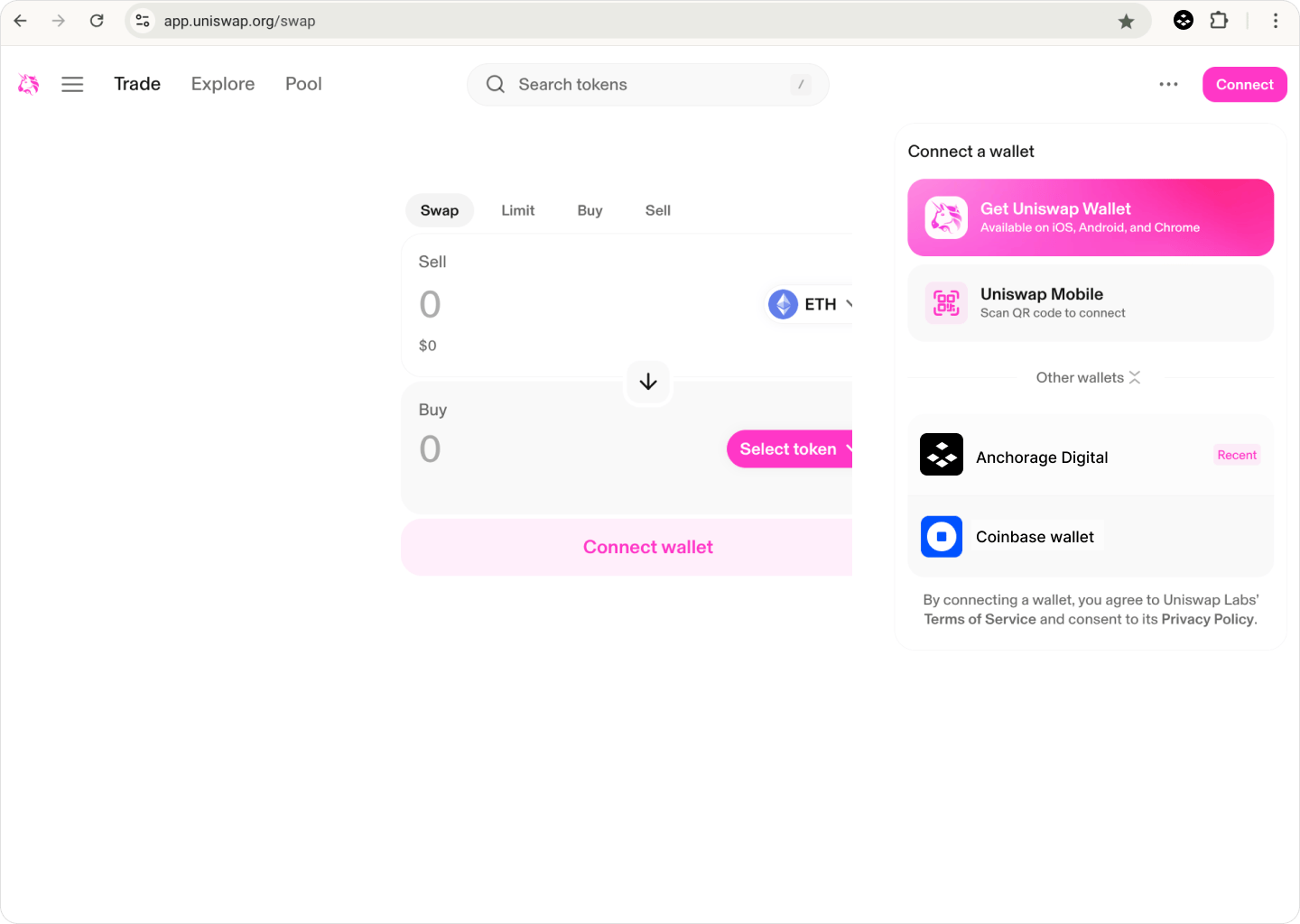
### Connect a wallet to an external app
Open an external app (dApp) in your browser.
Select **Connect** in the top right corner of the dApp.
Select **Anchorage Digital** from the list of wallet options.
If you don't see Anchorage Digital listed, contact [portohelp@anchorage.com](mailto:portohelp@anchorage.com).
Filter by vault or select a recently used wallet to find the account you want to connect. Select the wallet to view its details and balance information.
Select **Connect** to finish establishing the connection.
### Enabled networks
New chains are added to the browser extension regularly. You can view all enabled chains in the **Networks** filter within the **Wallets** tab.
### Connect a wallet to an external app
Open an external app (dApp) in your browser.
Select **Connect** in the top right corner of the dApp.
Select **Anchorage Digital** from the list of wallet options.
If you don't see Anchorage Digital listed, contact [portohelp@anchorage.com](mailto:portohelp@anchorage.com).
Filter by vault or select a recently used wallet to find the account you want to connect. Select the wallet to view its details and balance information.
Select **Connect** to finish establishing the connection.
 ### Switch wallets
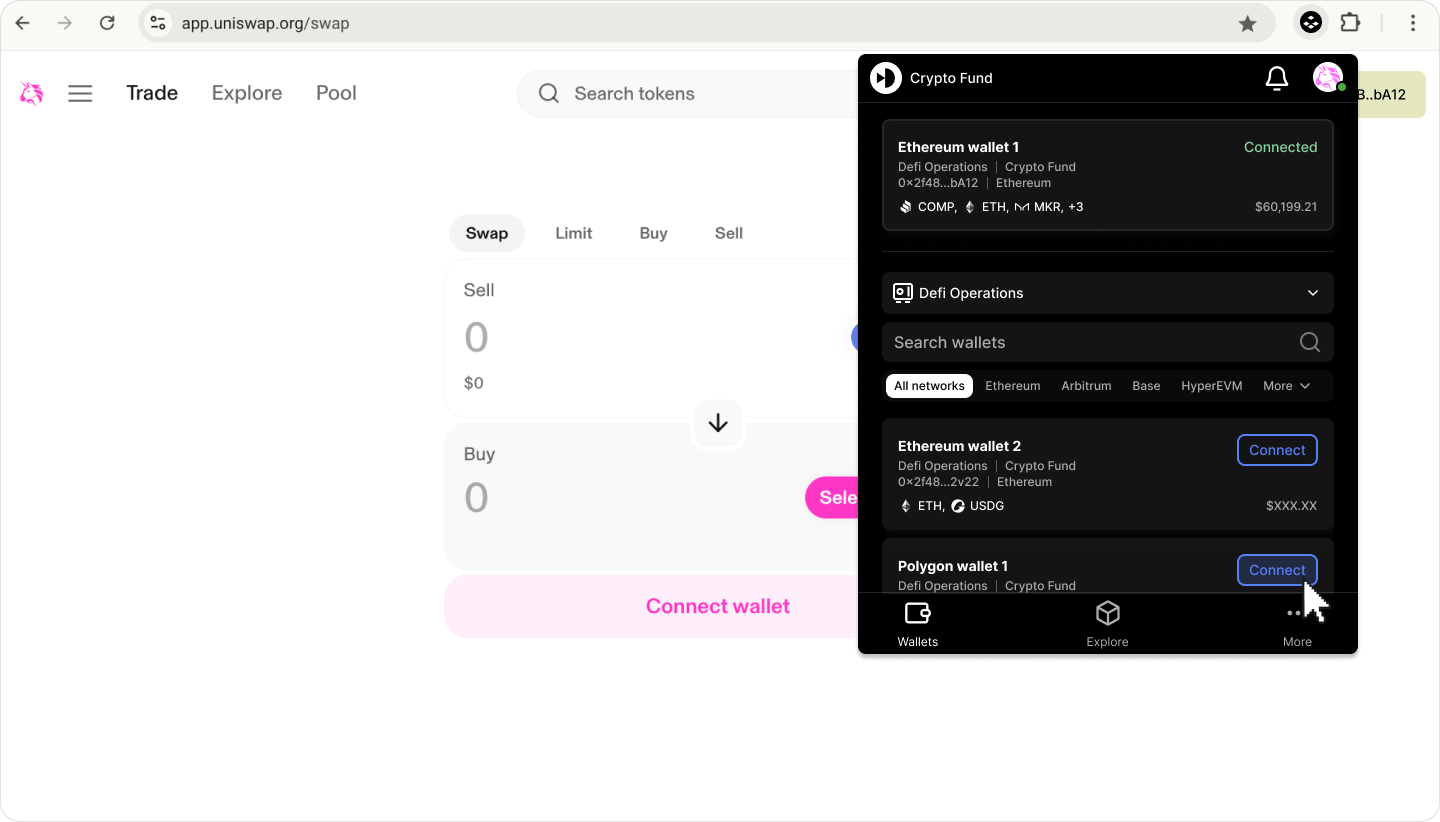
You can switch the connected wallet after you have established a connection.
Open the Anchorage Digital browser extension.
Go to the **Wallets** tab to see your currently connected wallet.
Search for a different wallet by vault, network, or name.
Select **Connect** on the wallet card to switch the connection.
### Switch wallets
You can switch the connected wallet after you have established a connection.
Open the Anchorage Digital browser extension.
Go to the **Wallets** tab to see your currently connected wallet.
Search for a different wallet by vault, network, or name.
Select **Connect** on the wallet card to switch the connection.
 Alternatively, switch wallets from the Wallet details page by selecting **Connect to external app**.
### Disconnect a wallet
You can disconnect your wallet in three ways:
Open the browser extension, select the dApp icon in the top right, and select **Disconnect wallet**.
Select the connected wallet, select **More** (three dots) in the top right, and select **Disconnect wallet**.
Select the connected wallet in the external app interface and select **Disconnect wallet**.
### Explore external apps
To open a recently used app, go to the **Explore** tab in the browser extension. The top section displays your five most recently used apps. Select an app card to open it in a new tab.
You can also view Top Apps used on Porto from the **Explore** tab.
Alternatively, switch wallets from the Wallet details page by selecting **Connect to external app**.
### Disconnect a wallet
You can disconnect your wallet in three ways:
Open the browser extension, select the dApp icon in the top right, and select **Disconnect wallet**.
Select the connected wallet, select **More** (three dots) in the top right, and select **Disconnect wallet**.
Select the connected wallet in the external app interface and select **Disconnect wallet**.
### Explore external apps
To open a recently used app, go to the **Explore** tab in the browser extension. The top section displays your five most recently used apps. Select an app card to open it in a new tab.
You can also view Top Apps used on Porto from the **Explore** tab.