> ## Documentation Index
> Fetch the complete documentation index at: https://docs.anchorage.com/llms.txt
> Use this file to discover all available pages before exploring further.
# Batch endorsements
> Group multiple operations for combined approval and streamlined quorum requirements.
Batch endorsements let you group multiple operations (withdrawals, transfers, or policy changes) together and submit them for a single combined approval instead of individual approvals. This streamlines workflow and can reduce approval overhead for repeated operations.
## What is a batch endorsement
A batch endorsement is:
* **A group of operations** — Multiple related transactions bundled together
* **Single approval** — All operations in the batch are approved together (not individually)
* **Reduced quorum** — Some organizations allow reduced approval requirements for batches
* **Atomic execution** — All operations in the batch execute together, or none do
You might batch:
* Daily withdrawals to multiple vendors
* Weekly stablecoin conversions
* Multiple policy adjustments
* Recurring transfers to trusted counterparties
## Eligible operations for batching
Not all operations can be batched. Typically eligible:
| Operation | Batchable | Notes |
| :-------------------------- | :-------- | :-------------------------------- |
| **Withdrawal** | ✔ | Most common batch operation |
| **Transfer between vaults** | ✔ | Internal transfers can be batched |
| **Stablecoin swap** | ✔ | Multiple swaps bundled |
| **Policy change** | ✔ | Limited — may have restrictions |
| **User management** | ✗ | Usually not batchable |
| **Vault settings change** | ✗ | Usually individual approvals |
Check with your administrator which operations your organization allows for batching.
## Create a batch endorsement
From your vault, select the asset and begin initiating a withdrawal or transfer.
During the operation flow, look for **Add to batch**, **Batch endorsement**, or **Group operations**. Tap it.
Select **Create new batch** or **Add to existing batch**. If new, name it (e.g., "Daily vendor settlements").
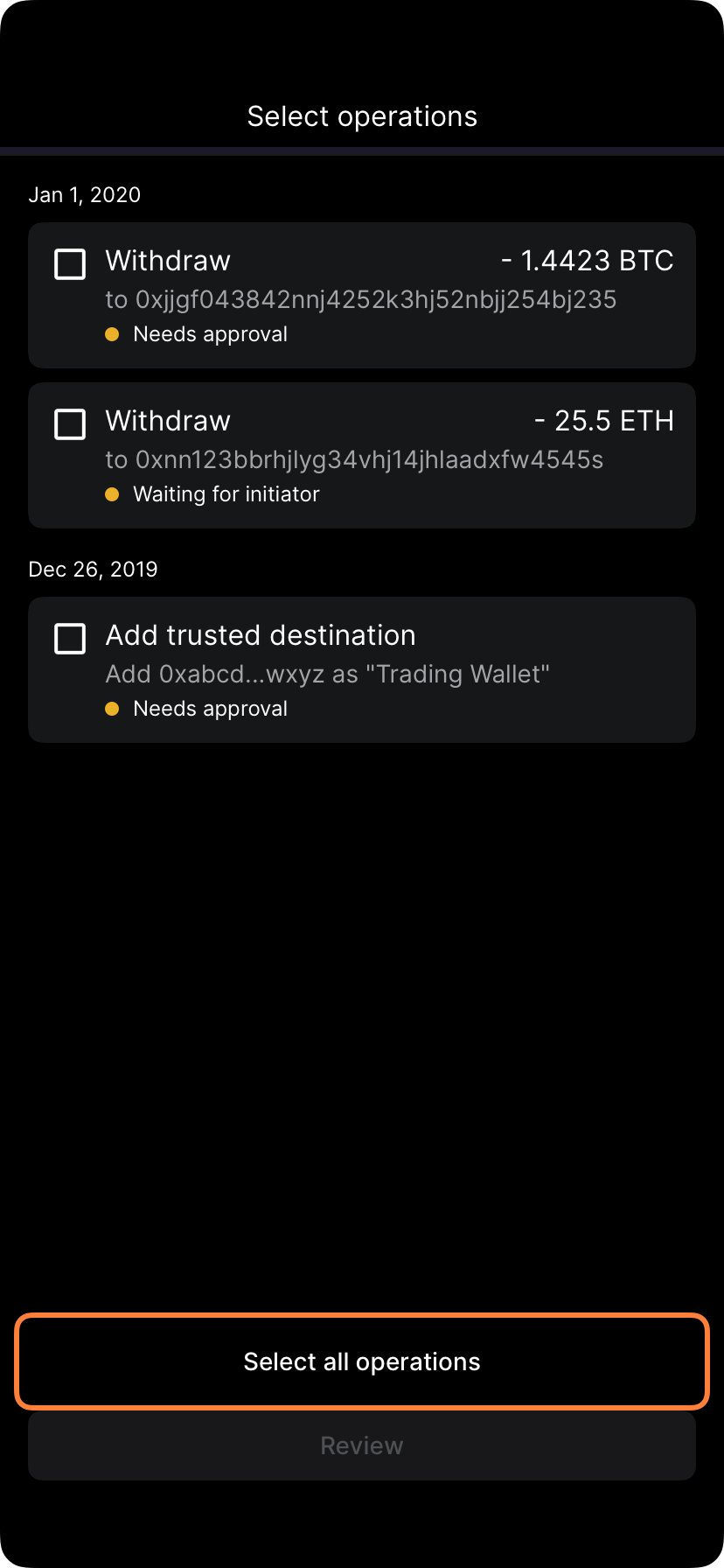 Enter the destination, amount, and other details for the first operation.
Tap **Add to batch** instead of **Submit for approval**. The operation is saved but not submitted.
Repeat the process for each additional operation you want to batch together.
Enter the destination, amount, and other details for the first operation.
Tap **Add to batch** instead of **Submit for approval**. The operation is saved but not submitted.
Repeat the process for each additional operation you want to batch together.
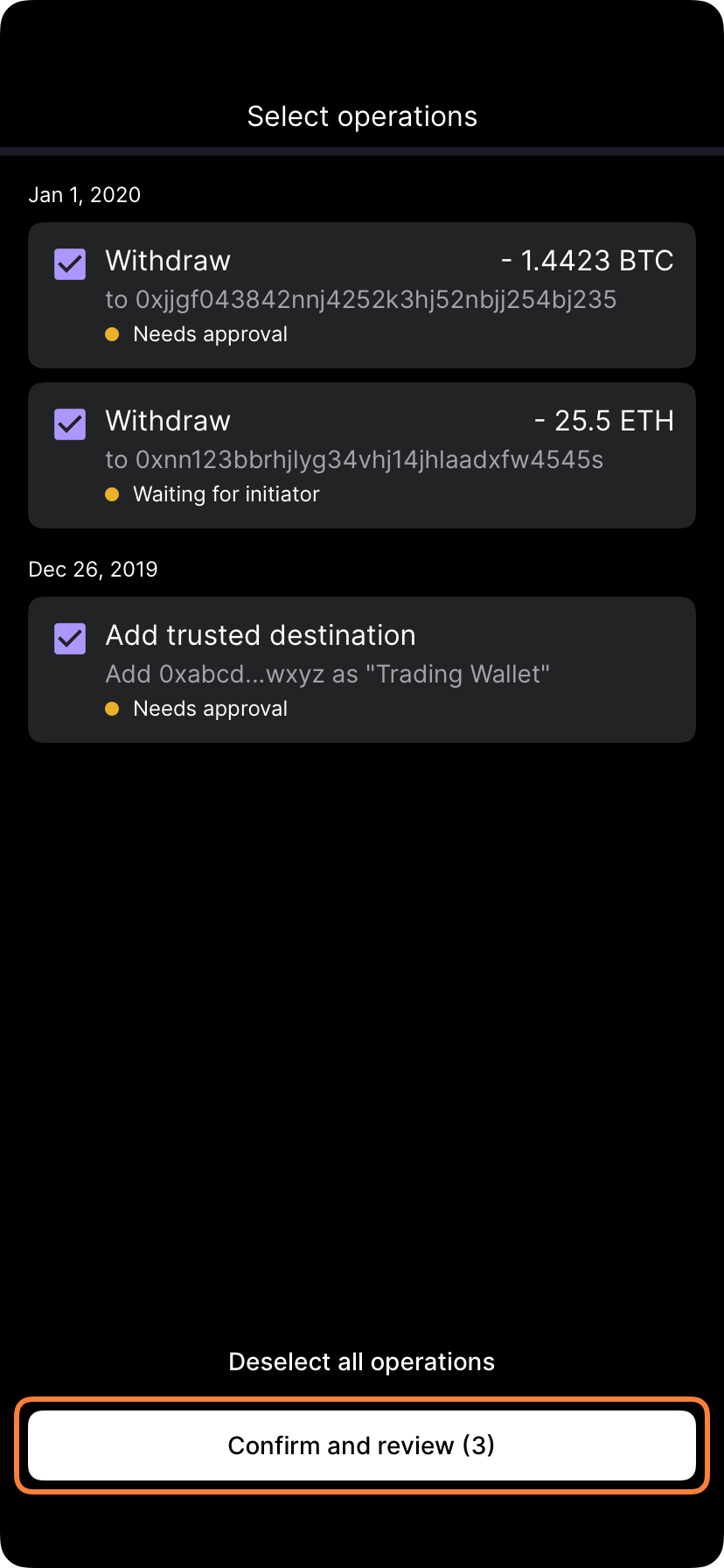 Once you've added all operations, review the full batch to confirm all details.
Tap **Submit batch** or **Request approval**. The entire batch is submitted at once.
Once you've added all operations, review the full batch to confirm all details.
Tap **Submit batch** or **Request approval**. The entire batch is submitted at once.
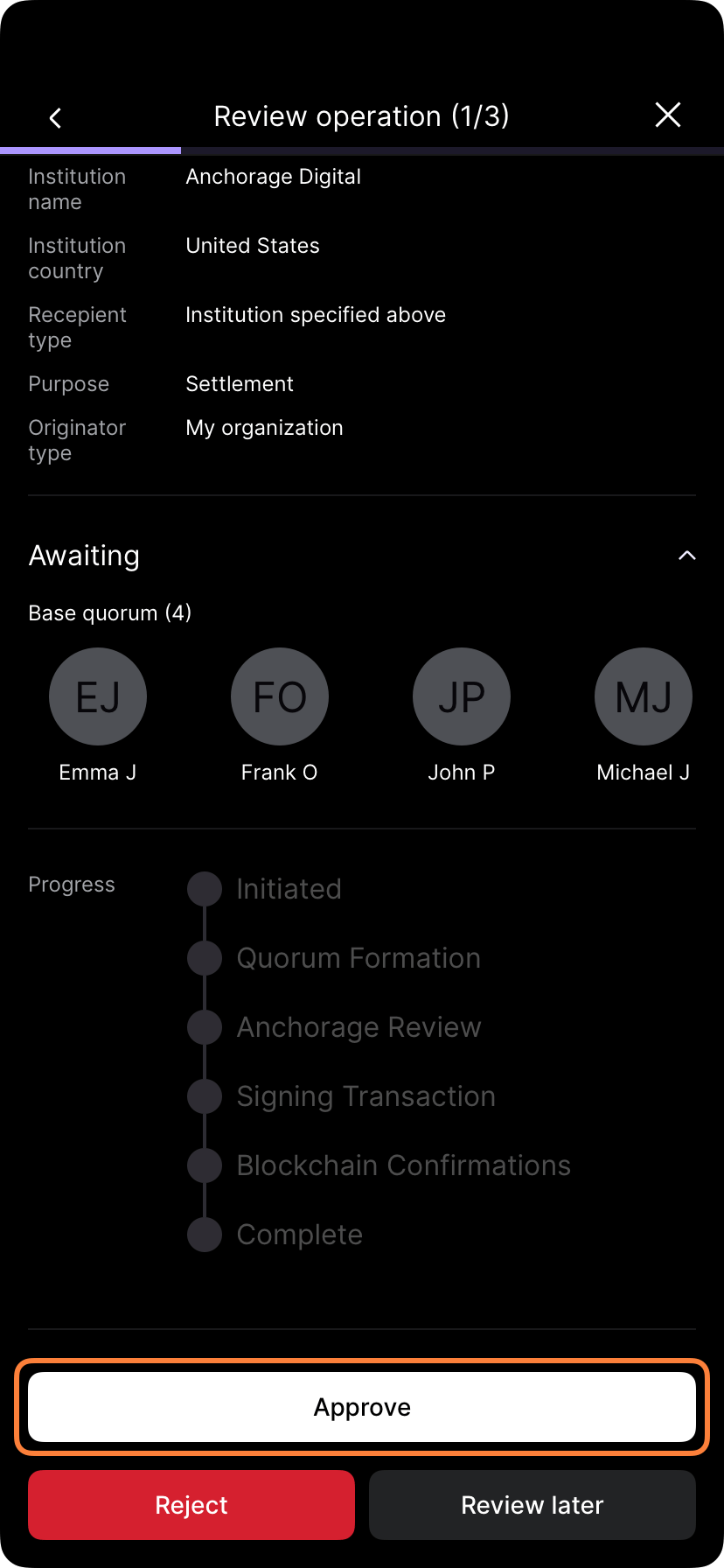 If you have approval permissions, complete biometric authentication to approve the full batch.
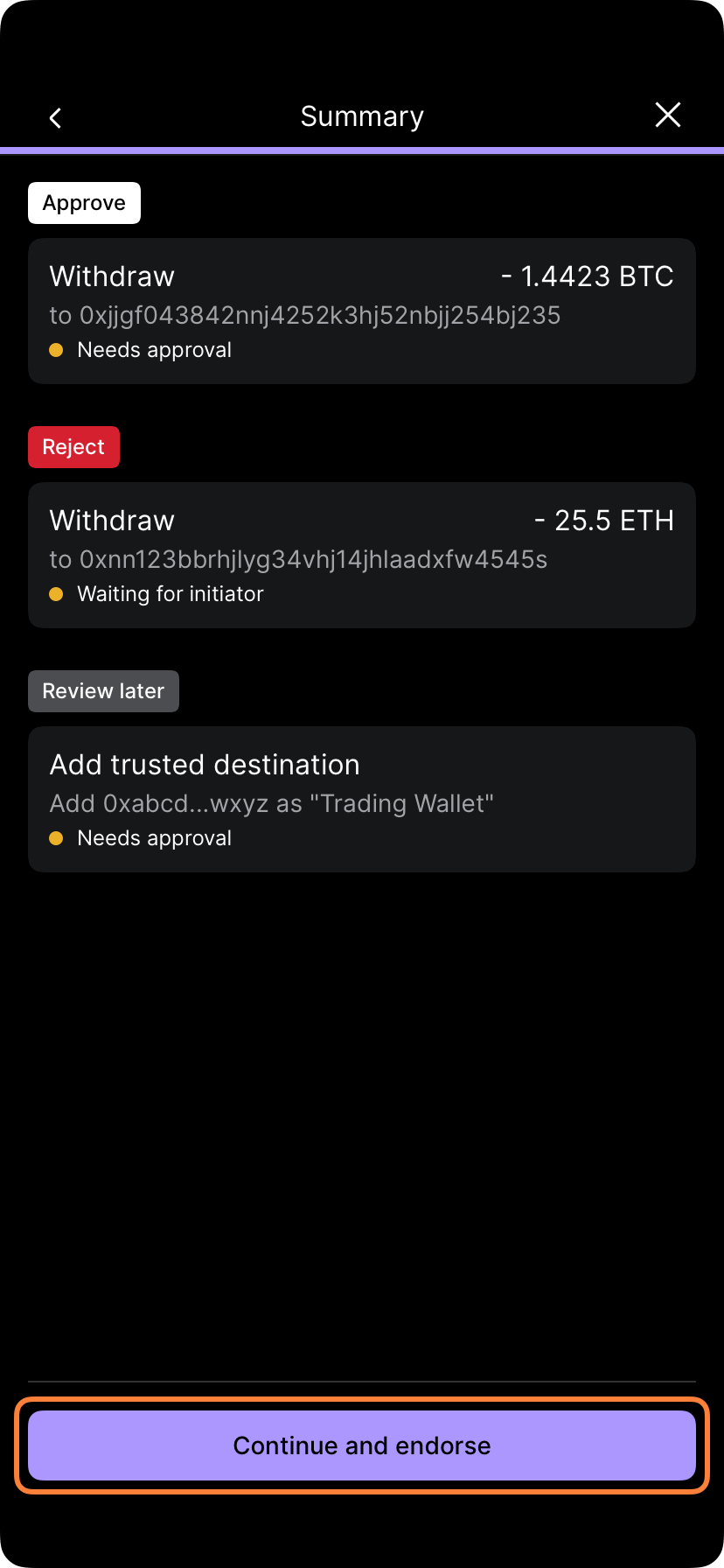 Operations in a batch must be compatible. You typically cannot mix different types (e.g., withdrawals and policy changes) in a single batch. Check your organization's batch policies for details.
## View pending batches
Go to the **Activity** section or **Pending approvals**.
Look for operations grouped as "Batch endorsement" or with a batch label.
Tap the batch to see:
* All operations in the batch
* Approval status of the batch
* Who submitted and who must approve
* Expected execution timeline
## Approving a batch
Go to **Activity** or **Pending approvals** and find the batch awaiting approval.
Expand the batch to see every operation. Verify:
* All destinations are correct
* All amounts are accurate
* No suspicious or unintended operations
If all looks correct, tap **Approve batch** or **Endorse**.
Complete Face ID or Touch ID to authorize approval of the full batch.
Once the batch has the required approvals, all operations execute in order.
Review every operation in a batch carefully. If even one operation is unintended or fraudulent, rejecting the entire batch may be necessary. There's no way to approve part of a batch — it's all or nothing.
## Rejecting a batch
If you spot an issue with any operation in a batch:
Find the pending batch in Activity or Pending approvals.
Identify which operation (or operations) is incorrect.
Select **Reject batch**, **Decline**, or **Refuse approval**.
You may be able to add a comment explaining why the batch was rejected.
The person who created the batch will be notified of the rejection and the reason.
The submitter can then fix the problematic operation and resubmit the batch.
## Editing a batch before submission
If you haven't submitted a batch yet, you can edit it:
Go to **Pending batches** or **Draft operations**.
Tap the batch you want to edit.
You can:
* Modify amounts or destinations in operations
* Remove operations from the batch
* Add new operations
Once edits are complete, tap **Submit batch** to send it for approval.
Once a batch is submitted for approval, individual operations cannot be edited. If you need to change something, the batch must be rejected and resubmitted.
## Batch execution
Once a batch has all required approvals:
1. **Operations execute in order** — Porto executes each operation sequentially
2. **All succeed or all fail** — If one operation fails, the entire batch may fail (depends on your setup)
3. **Activity log records all** — Each operation appears in Activity with batch timestamp
4. **Blockchain confirmation** — On-chain operations confirm at normal speeds
## Batching best practices
* **Group related operations** — Batch withdrawals to the same type of recipient (vendors, exchanges, etc.)
* **Reasonable batch size** — Don't batch hundreds of operations at once — keep batches to 5-20 operations
* **Clear naming** — Name batches so approvers understand their purpose ("Tuesday vendor payments," "Monthly stablecoin rebalancing")
* **Regular timing** — Create batches on predictable schedules if they're recurring (daily, weekly, monthly)
* **Verify before submission** — Review amounts and destinations carefully before submitting; rejection and resubmission is inconvenient
* **Document the batch** — Add notes explaining why operations are being batched together
## Batch approval policies
Your organization may have policies around batch approvals:
* **Batch approval thresholds** — Maximum total amount per batch
* **Reduced quorum** — Batches might require fewer approvers than individual operations
* **Frequency limits** — How often batches can be submitted
* **Recipient restrictions** — Batches to trusted destinations may have different rules than new addresses
Ask your administrator about your organization's batch endorsement policies.
## Troubleshooting batches
**Batch won't submit:**
* Ensure all operations are compatible
* Check that you have permission to batch these operation types
* Verify the total batch amount isn't exceeding organization limits
**Batch rejected:**
* Check the rejection reason from the approver
* Fix the problematic operation(s)
* Resubmit after making corrections
**Operation failed in batch:**
* Check Activity log to see which operation failed and why
* Resubmit just that operation individually, or fix and resubmit the batch
Operations in a batch must be compatible. You typically cannot mix different types (e.g., withdrawals and policy changes) in a single batch. Check your organization's batch policies for details.
## View pending batches
Go to the **Activity** section or **Pending approvals**.
Look for operations grouped as "Batch endorsement" or with a batch label.
Tap the batch to see:
* All operations in the batch
* Approval status of the batch
* Who submitted and who must approve
* Expected execution timeline
## Approving a batch
Go to **Activity** or **Pending approvals** and find the batch awaiting approval.
Expand the batch to see every operation. Verify:
* All destinations are correct
* All amounts are accurate
* No suspicious or unintended operations
If all looks correct, tap **Approve batch** or **Endorse**.
Complete Face ID or Touch ID to authorize approval of the full batch.
Once the batch has the required approvals, all operations execute in order.
Review every operation in a batch carefully. If even one operation is unintended or fraudulent, rejecting the entire batch may be necessary. There's no way to approve part of a batch — it's all or nothing.
## Rejecting a batch
If you spot an issue with any operation in a batch:
Find the pending batch in Activity or Pending approvals.
Identify which operation (or operations) is incorrect.
Select **Reject batch**, **Decline**, or **Refuse approval**.
You may be able to add a comment explaining why the batch was rejected.
The person who created the batch will be notified of the rejection and the reason.
The submitter can then fix the problematic operation and resubmit the batch.
## Editing a batch before submission
If you haven't submitted a batch yet, you can edit it:
Go to **Pending batches** or **Draft operations**.
Tap the batch you want to edit.
You can:
* Modify amounts or destinations in operations
* Remove operations from the batch
* Add new operations
Once edits are complete, tap **Submit batch** to send it for approval.
Once a batch is submitted for approval, individual operations cannot be edited. If you need to change something, the batch must be rejected and resubmitted.
## Batch execution
Once a batch has all required approvals:
1. **Operations execute in order** — Porto executes each operation sequentially
2. **All succeed or all fail** — If one operation fails, the entire batch may fail (depends on your setup)
3. **Activity log records all** — Each operation appears in Activity with batch timestamp
4. **Blockchain confirmation** — On-chain operations confirm at normal speeds
## Batching best practices
* **Group related operations** — Batch withdrawals to the same type of recipient (vendors, exchanges, etc.)
* **Reasonable batch size** — Don't batch hundreds of operations at once — keep batches to 5-20 operations
* **Clear naming** — Name batches so approvers understand their purpose ("Tuesday vendor payments," "Monthly stablecoin rebalancing")
* **Regular timing** — Create batches on predictable schedules if they're recurring (daily, weekly, monthly)
* **Verify before submission** — Review amounts and destinations carefully before submitting; rejection and resubmission is inconvenient
* **Document the batch** — Add notes explaining why operations are being batched together
## Batch approval policies
Your organization may have policies around batch approvals:
* **Batch approval thresholds** — Maximum total amount per batch
* **Reduced quorum** — Batches might require fewer approvers than individual operations
* **Frequency limits** — How often batches can be submitted
* **Recipient restrictions** — Batches to trusted destinations may have different rules than new addresses
Ask your administrator about your organization's batch endorsement policies.
## Troubleshooting batches
**Batch won't submit:**
* Ensure all operations are compatible
* Check that you have permission to batch these operation types
* Verify the total batch amount isn't exceeding organization limits
**Batch rejected:**
* Check the rejection reason from the approver
* Fix the problematic operation(s)
* Resubmit after making corrections
**Operation failed in batch:**
* Check Activity log to see which operation failed and why
* Resubmit just that operation individually, or fix and resubmit the batch