> ## Documentation Index
> Fetch the complete documentation index at: https://docs.anchorage.com/llms.txt
> Use this file to discover all available pages before exploring further.

# Recovering access

> Replace devices, reinstall the app, and recover organization access.

## iPhone replacement

### Replacing with access to your old device

Use this method if you still have access to your old iPhone and can generate a QR code from it.

<div style={{ display: "flex", gap: "2rem", alignItems: "flex-start" }}>
  <div style={{ flex: 1 }}>
    <Steps>
      <Step title="Download Porto on your new device">
        On your new device, tap your profile in the App Store, tap **Purchased**, then search for **Porto by Anchorage Digital** and install the app. Alternatively, search for **Porto by Anchorage Digital** directly in the App Store to re-download it.
      </Step>

      <Step title="Initiate replacement on your old device">
        On the old device, go to **Settings**, tap **Replace my device**, and follow the on-screen prompts to generate a QR code.
      </Step>

      <Step title="Scan the QR code on your new device">
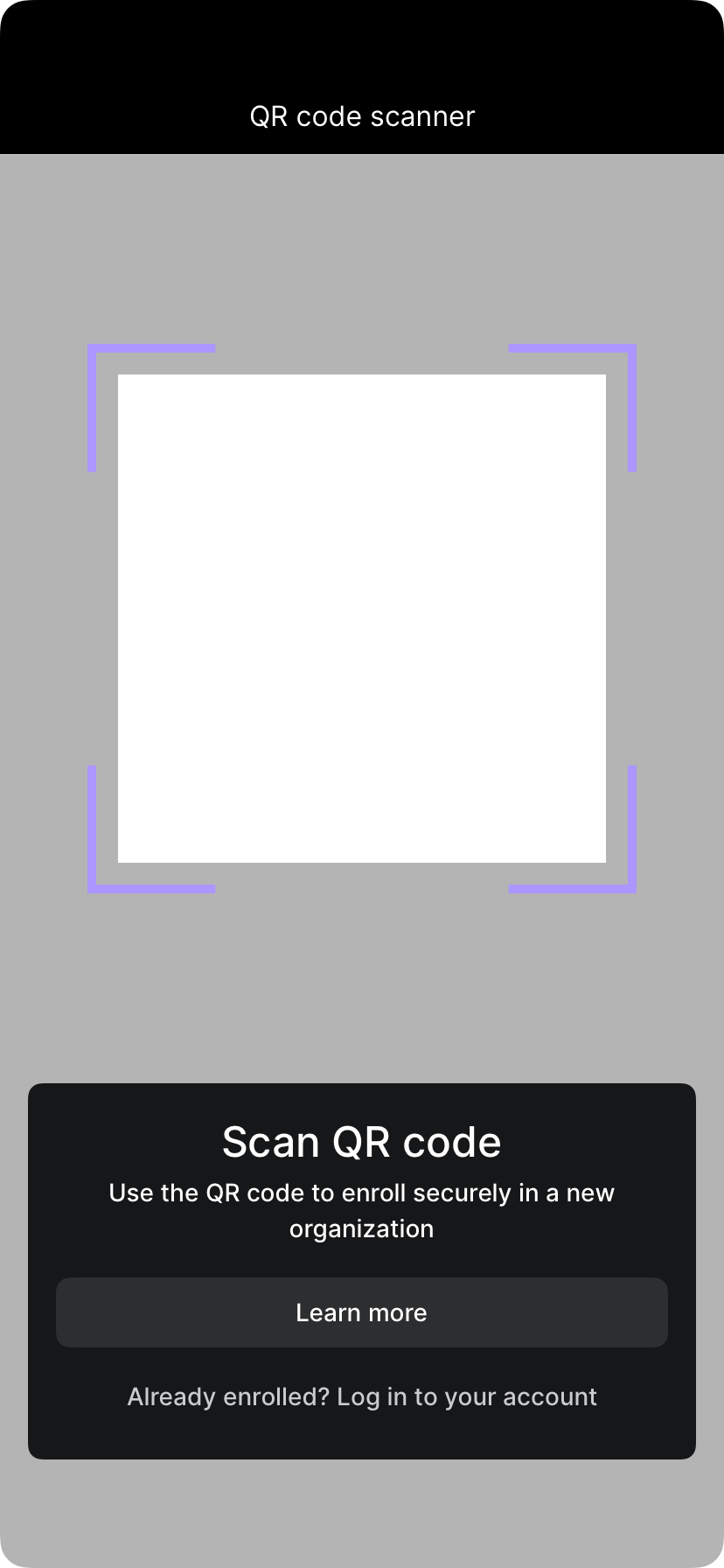
        Open the Porto app on your new device and select **Join organization**. Scan the QR code displayed on your old device and follow the instructions.
      </Step>

      <Step title="Submit biometric approval">
        Submit biometric authentication on the old device to initiate the operation.
      </Step>

      <Step title="Get administrator approval">
        Ask the administrators on the account to approve the replace device operation on their devices. Once quorum is met, the replacement will be complete.
      </Step>
    </Steps>
  </div>

  <div style={{ flex: "0 0 auto" }}>
    <Frame caption="QR code scanner during device replacement">
      <img src="https://mintcdn.com/deployment-4/Q6VrRBiEEXtXFQnt/knowledge-base/images/screenshots/device-enrollment-scanner-porto.png?fit=max&auto=format&n=Q6VrRBiEEXtXFQnt&q=85&s=ea0da8a2046a8402b408002b6f50ce80" alt="QR code scanner screen for enrolling a device in Porto" style={{ maxHeight: "480px", width: "auto" }} width="828" height="1792" data-path="knowledge-base/images/screenshots/device-enrollment-scanner-porto.png" />
    </Frame>
  </div>
</div>

### Replacing without access to your old device

Use this method if your old iPhone has been lost, stolen, or is otherwise inaccessible.
<Steps>
  <Step title="Contact Porto Support">
    Contact [portohelp@anchorage.com](mailto:portohelp@anchorage.com) to initiate the device replacement operation. The old iPhone will be marked as lost.
  </Step>

  <Step title="Administrator marks the device as lost">
    After the device is marked as lost by the Porto Support team, an administrator on the account must go to **Settings**, then tap **Team**.
  </Step>

  <Step title="Set up new device">
    Tap **Lost device** next to the user's name, then tap **Set up new device**.
  </Step>

  <Step title="Download Porto on your new device">
    On your new device, tap your profile in the App Store, tap **Purchased**, search for **Porto by Anchorage Digital**, and install the app.
  </Step>
</Steps>

<Note>
  Only administrators can initiate and approve the replacement operation for a lost device.
</Note>

## Reinstalling or updating the iOS app

If you are keeping the same Apple ID that was used to initially download Porto, a full reinstall is not required when switching to a new device — the app will appear in your purchased apps.

<Steps>
  <Step title="Find Porto in your purchases">
    On your device, tap your profile in the App Store, then tap **Purchased**.
  </Step>

  <Step title="Reinstall the app">
    Search for **Porto by Anchorage Digital** and tap the download icon to install the app.
  </Step>
</Steps>

<Info>
  For assistance with device replacement or access recovery, contact [portohelp@anchorage.com](mailto:portohelp@anchorage.com).
</Info>
