> ## Documentation Index
> Fetch the complete documentation index at: https://docs.anchorage.com/llms.txt
> Use this file to discover all available pages before exploring further.

# Managing users

> Change permission levels and remove users from Porto.

export const ImageCarousel = ({images, perView = 3, children}) => {
  const [page, setPage] = useState(0);
  const [imgH, setImgH] = useState(0);
  const stripRef = useRef(null);
  const THUMB_MAX_WIDTH = 220;
  const PEEK_WIDTH = 34;
  useEffect(() => {
    const strip = stripRef.current;
    if (!strip) return;
    const measure = () => {
      const box = strip.querySelector("[data-carousel-imgbox]");
      if (box && box.clientHeight) setImgH(box.clientHeight);
    };
    measure();
    const ro = new ResizeObserver(measure);
    ro.observe(strip);
    return () => ro.disconnect();
  }, []);
  const fromChildren = React.Children.toArray(children).map(c => c && c.props && c.props.src ? {
    src: c.props.src,
    alt: c.props.alt
  } : null).filter(Boolean);
  const items = fromChildren.length ? fromChildren : images || [];
  if (!items.length) return null;
  const count = items.length;
  const columns = Math.min(perView, count);
  const totalPages = Math.ceil(count / columns);
  const showControls = totalPages > 1;
  const goTo = p => setPage((p % totalPages + totalPages) % totalPages);
  const prev = () => goTo(page - 1);
  const next = () => goTo(page + 1);
  const start = page * columns;
  const visible = items.slice(start, start + columns);
  const prevPeek = start > 0 ? items[start - 1] : null;
  const nextPeek = start + columns < count ? items[start + columns] : null;
  const renderPeek = (img, side) => {
    if (!img) return null;
    const isLeft = side === "left";
    return <button type="button" onClick={isLeft ? prev : next} aria-hidden="true" tabIndex={-1} style={{
      flex: `0 0 ${PEEK_WIDTH}px`,
      width: PEEK_WIDTH + "px",
      alignSelf: imgH ? "flex-start" : "stretch",
      height: imgH ? imgH + "px" : undefined,
      border: 0,
      padding: 0,
      cursor: "pointer",
      opacity: 0.5,
      borderRadius: isLeft ? "10px 0 0 10px" : "0 10px 10px 0",
      backgroundImage: `url("${img.src}")`,
      backgroundRepeat: "no-repeat",
      backgroundSize: "auto 100%",
      backgroundPosition: isLeft ? "right center" : "left center",
      WebkitMaskImage: `linear-gradient(to ${isLeft ? "left" : "right"}, #000 15%, transparent 100%)`,
      maskImage: `linear-gradient(to ${isLeft ? "left" : "right"}, #000 15%, transparent 100%)`
    }} />;
  };
  const arrowStyle = {
    flex: "0 0 auto",
    width: "30px",
    height: "30px",
    borderRadius: "50%",
    border: "1px solid var(--ad-border, #e4e5e7)",
    background: "var(--background, #fff)",
    fontSize: "16px",
    lineHeight: "28px",
    textAlign: "center",
    cursor: "pointer",
    padding: 0
  };
  return <div style={{
    outline: "none",
    margin: "1.5rem 0"
  }} role={showControls ? "group" : undefined} aria-label={showControls ? "Screenshot carousel" : undefined} aria-roledescription={showControls ? "carousel" : undefined}>
      <div style={{
    display: "flex",
    alignItems: "center",
    gap: "10px"
  }}>
        {showControls && <button type="button" onClick={prev} aria-label="Previous screenshots" style={arrowStyle}>
            ‹
          </button>}

        <div ref={stripRef} style={{
    display: "flex",
    flexWrap: "nowrap",
    alignItems: "flex-start",
    gap: "14px",
    justifyContent: "center",
    flex: 1
  }}>
          {renderPeek(prevPeek, "left")}
          {}
          {Array.from({
    length: columns
  }).map((_, i) => {
    const img = visible[i];
    const slotStyle = {
      margin: 0,
      flex: "1 1 0",
      maxWidth: THUMB_MAX_WIDTH + "px",
      minWidth: 0
    };
    if (!img) {
      return <div key={start + i} aria-hidden="true" style={{
        ...slotStyle,
        visibility: "hidden"
      }} />;
    }
    return <div key={start + i} style={slotStyle}>
                <span data-carousel-imgbox style={{
      display: "block"
    }}>
                  <img src={img.src} alt={img.alt ?? ""} style={{
      display: "block",
      width: "100%",
      height: "auto",
      margin: 0,
      borderRadius: "10px",
      border: "1px solid var(--ad-border, #e4e5e7)"
    }} />
                </span>
                {img.alt && <div style={{
      marginTop: "6px",
      fontSize: "12px",
      lineHeight: 1.4,
      color: "var(--ad-muted, #6b7280)",
      textAlign: "center"
    }}>
                    {img.alt}
                  </div>}
              </div>;
  })}
          {renderPeek(nextPeek, "right")}
        </div>

        {showControls && <button type="button" onClick={next} aria-label="Next screenshots" style={arrowStyle}>
            ›
          </button>}
      </div>

      {showControls && <div style={{
    textAlign: "center",
    marginTop: "8px",
    fontSize: "12px",
    color: "var(--ad-muted, #6b7280)"
  }}>
          {start + 1}
          {visible.length > 1 ? "–" + (start + visible.length) : ""} of {count}
        </div>}
    </div>;
};

Administrators with vault management permissions may adjust user permission levels and remove users from the organization.

## Changing permission levels

### Assigning vault access as an Operator

Administrators can add users to a vault and assign them Operator-level privileges to initiate operations, or to both initiate and approve vault operations.

<Steps>
  <Step title="Open vault settings">
    Tap the desired vault, then tap the **Settings** icon in the upper right corner, then tap **Users**.
  </Step>

  <Step title="Add the user">
    Tap **Add user** and select the user or users to add to the vault.
  </Step>

  <Step title="Set privileges">
    To restrict a user to initiate-only permissions, tap the user, select **Initiate only**, and tap **Save changes**.
  </Step>

  <Step title="Submit the operation">
    Tap **Finish and review**, add an optional comment, and follow the prompts to submit biometric approval. The other administrators will receive a notification to approve. Once quorum is met, the operation will be completed.
  </Step>
</Steps>

<ImageCarousel>
  <img src="https://mintcdn.com/deployment-4/3eHo4c6eQNfdmseu/knowledge-base/images/screenshots/porto-permission-operator-1.png?fit=max&auto=format&n=3eHo4c6eQNfdmseu&q=85&s=3bfad4838b0fd766a58e4b738c43c9e7" alt="Vault settings screen with Users highlighted" width="828" height="1792" data-path="knowledge-base/images/screenshots/porto-permission-operator-1.png" />

  <img src="https://mintcdn.com/deployment-4/3eHo4c6eQNfdmseu/knowledge-base/images/screenshots/porto-permission-operator-3.png?fit=max&auto=format&n=3eHo4c6eQNfdmseu&q=85&s=6c67aafa6e6bc9f09c66a2575c1d6267" alt="Role screen for a user with Initiate and approve currently selected" width="828" height="1792" data-path="knowledge-base/images/screenshots/porto-permission-operator-3.png" />

  <img src="https://mintcdn.com/deployment-4/3eHo4c6eQNfdmseu/knowledge-base/images/screenshots/porto-permission-operator-4.png?fit=max&auto=format&n=3eHo4c6eQNfdmseu&q=85&s=a633debfa43b26f1fdabbba2bacf3cb3" alt="Role screen with Initiate only selected and Save changes highlighted" width="828" height="1792" data-path="knowledge-base/images/screenshots/porto-permission-operator-4.png" />

  <img src="https://mintcdn.com/deployment-4/3eHo4c6eQNfdmseu/knowledge-base/images/screenshots/porto-permission-operator-5.png?fit=max&auto=format&n=3eHo4c6eQNfdmseu&q=85&s=71382fd88cb3fd5a3f013080454068e4" alt="Users list showing the updated privilege with Finish and review highlighted" width="828" height="1792" data-path="knowledge-base/images/screenshots/porto-permission-operator-5.png" />

  <img src="https://mintcdn.com/deployment-4/3eHo4c6eQNfdmseu/knowledge-base/images/screenshots/porto-permission-operator-6.png?fit=max&auto=format&n=3eHo4c6eQNfdmseu&q=85&s=6e28a00d091f5cf1f95ed3e677887566" alt="Add a comment screen before submitting the change for approval" width="828" height="1792" data-path="knowledge-base/images/screenshots/porto-permission-operator-6.png" />
</ImageCarousel>

### Assigning users as administrators

Administrators can increase or decrease a user's permissions to the administrator level by editing the administrator policy's base quorum.

<Steps>
  <Step title="Navigate to the administrator policy">
    Tap the **Settings** icon, then tap **Admin policy** and select the policy to edit.
  </Step>

  <Step title="Open the rule">
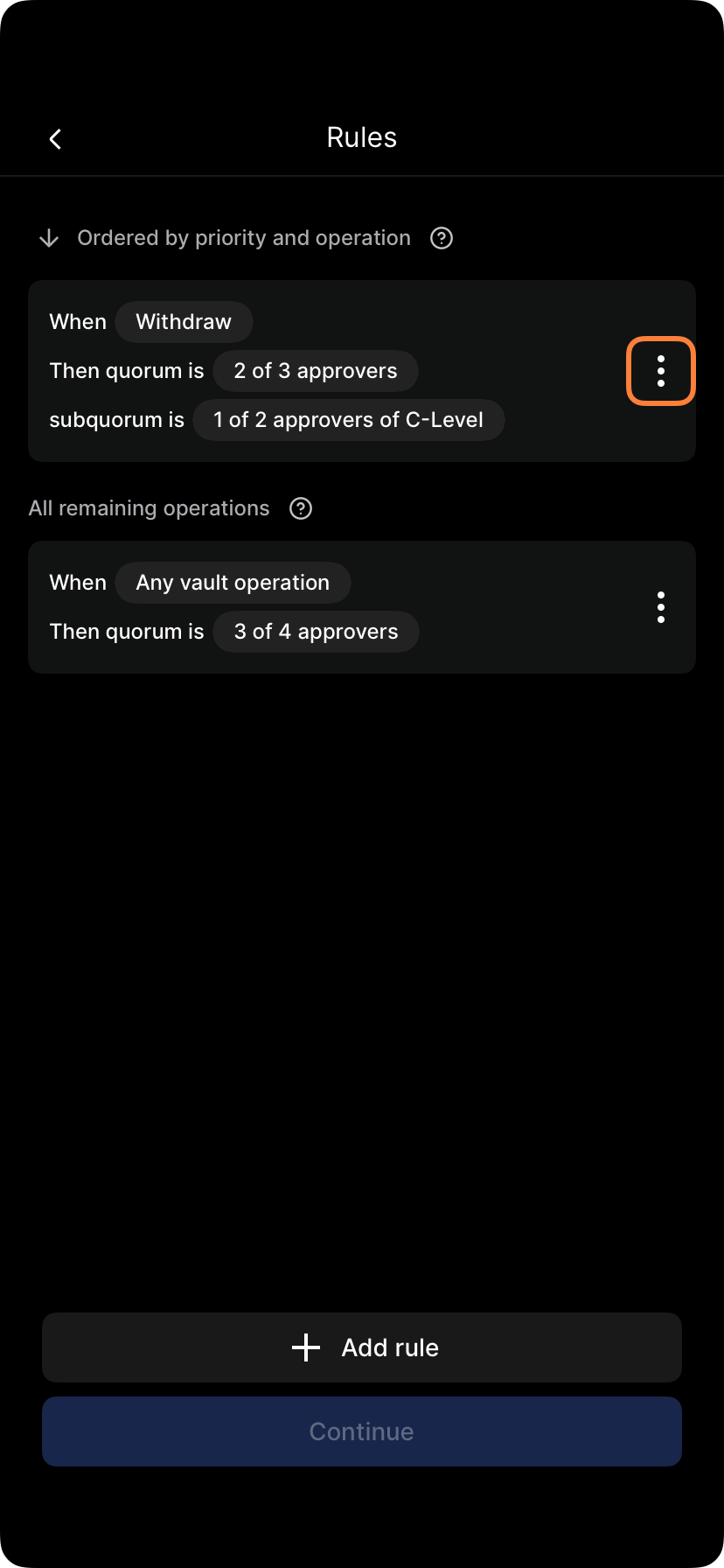
    Tap **Rules**, then tap the three-dot menu next to the rule you want to edit and select **Edit rule**.
  </Step>

  <Step title="Add the user">
    In **Edit rule**, tap the **Quorum is** field, select the user or users to add, then tap **Continue**.
  </Step>

  <Step title="Save and submit">
    Tap **Done** to save the rule, then follow the prompts to submit biometric approval — quorum approval is required.
  </Step>
</Steps>

<ImageCarousel>
  <img src="https://mintcdn.com/deployment-4/lSVGGJ7Z6F9zIy7U/knowledge-base/images/screenshots/porto-policy-rules-list.png?fit=max&auto=format&n=lSVGGJ7Z6F9zIy7U&q=85&s=57c023d37370daa9b3892323f956311c" alt="Rules screen with the three-dot menu highlighted next to a rule" width="828" height="1792" data-path="knowledge-base/images/screenshots/porto-policy-rules-list.png" />

  <img src="https://mintcdn.com/deployment-4/3eHo4c6eQNfdmseu/knowledge-base/images/screenshots/porto-policy-edit-rule-quorum-members-open.png?fit=max&auto=format&n=3eHo4c6eQNfdmseu&q=85&s=d08212f1d4712e66aa18ca712de24d9b" alt="Edit rule screen with the Quorum is field highlighted" width="828" height="1792" data-path="knowledge-base/images/screenshots/porto-policy-edit-rule-quorum-members-open.png" />

  <img src="https://mintcdn.com/deployment-4/3eHo4c6eQNfdmseu/knowledge-base/images/screenshots/porto-policy-edit-rule-quorum-members-picker.png?fit=max&auto=format&n=3eHo4c6eQNfdmseu&q=85&s=cfffe3adce7745f1431767aa41ccb6d0" alt="Member picker for the rule's quorum, with Continue highlighted" width="828" height="1792" data-path="knowledge-base/images/screenshots/porto-policy-edit-rule-quorum-members-picker.png" />

  <img src="https://mintcdn.com/deployment-4/3eHo4c6eQNfdmseu/knowledge-base/images/screenshots/porto-policy-edit-rule-quorum-members-done.png?fit=max&auto=format&n=3eHo4c6eQNfdmseu&q=85&s=64bbf0932722c15ea9c105ccfbf59503" alt="Edit rule screen with updated quorum members and Done highlighted" width="828" height="1792" data-path="knowledge-base/images/screenshots/porto-policy-edit-rule-quorum-members-done.png" />
</ImageCarousel>

The other quorum administrators will receive a notification to approve the operation. Once quorum is met, the operation will be completed.

## Removing users

<Note>
  Only administrators with user management permissions can remove users from the organization.
</Note>

<Steps>
  <Step title="Navigate to Team settings">
    Tap the **gear icon** to open Settings, scroll down, and tap **Team**.
  </Step>

  <Step title="Select the user">
    Select the user you want to remove.
  </Step>

  <Step title="Remove the user">
    Tap **Remove user from organization**, add an optional comment, and tap **Review**.
  </Step>

  <Step title="Submit biometric approval">
    Submit biometric approval. The other administrators will receive a notification to approve the operation. Once quorum is met, Anchorage Digital will review for final approval.
  </Step>
</Steps>