

Quorum-enforced
Any activity related to permission groups requires quorum approval, so changes stay in the hands of your trusted admins.
Flexible
Set up multiple permission groups and create as many API keys as you need under each group.
Inherited
Updates to a permission group propagate to all of its API keys. Deleting a group invalidates every key within it.
Read-only by default
Each organization starts with a default read-only permission group, which you can modify at any time.
Example of permission groups
How to create a permission group
1
Access the API section
From the homepage, select Developers, then API 2.0 to access Anchorage Digital APIs, then select Create new group.
2
Configure the group
Give the permission group a name and select the appropriate global and vault-level permissions.
3
Endorse and approve
Optionally add a comment, then select Endorse to create the group. Follow the prompts to submit biometric approval through the mobile app — quorum approval is required. After quorum is met, Anchorage Digital reviews the group for approval.
Permission levels
When you create a permission group, your selections determine which APIs the associated keys can call. There are two levels of vault permissions.Global permissions
Global permissions sit across all of your vaults, not just one. If a key has the global Initiate withdrawals permission, it can initiate a withdrawal from any of your vaults. Withdrawals still require quorum approval.Vault-level permissions
Vault-level permissions are specific to a single vault. If a key has vault-level Internal Transfer permissions, it can initiate a transfer only from that source vault, or the wallets within it.All-vaults
The all-vaults option lets all current and future vaults inherit a permission. Even if a vault changes names or moves to a different account, any key keeps the permission.Permissions reference
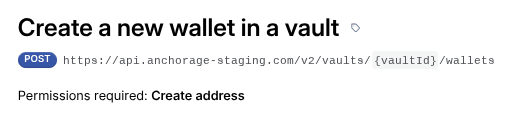
Each API requires a specific permission tied to the permission group, and to the key that belongs to it. Use this table to map the permission you select to the operations it unlocks.
API permissions by endpoint