

- Replacing an iPhone without access to your old device
- Replacing an iPhone with access to your old device
- Reinstalling or updating the iOS app
Replacing an iPhone without access to your old device
Use this method if your old iPhone has been lost, stolen, or is otherwise inaccessible. Contact Anchorage Digital to have the old device marked as lost, then an administrator with user management permissions sets up your new device and shares a QR code with you to scan.1
Install the app on your new device
If you’re keeping the same Apple ID used for the original download, tap your profile in the App Store, then tap Apps. Search for Anchorage Digital and install. If you’re using a different Apple ID, contact accountexecutive@anchorage.com for the regular download.
2
Contact Anchorage Digital
After installing, contact accountexecutive@anchorage.com to initiate the device replacement operation. The old iPhone will be marked as lost. Only administrators with user management permissions can initiate and approve the replacement operation.
3
Administrator sets up your new device
After Anchorage Digital confirms the device is lost, an administrator goes to Settings, taps Team, finds you, and taps Lost device, then Set up new device.
4
Scan the QR code
The administrator shares the generated QR code with you to scan on your new device.
5
Administrator submits biometric approval
The initiating administrator goes to Activity, opens the operation, and submits biometric approval.
6
Await quorum and Anchorage Digital approval
Other administrators receive a notification to approve. Once quorum is met, Anchorage Digital will review for approval.
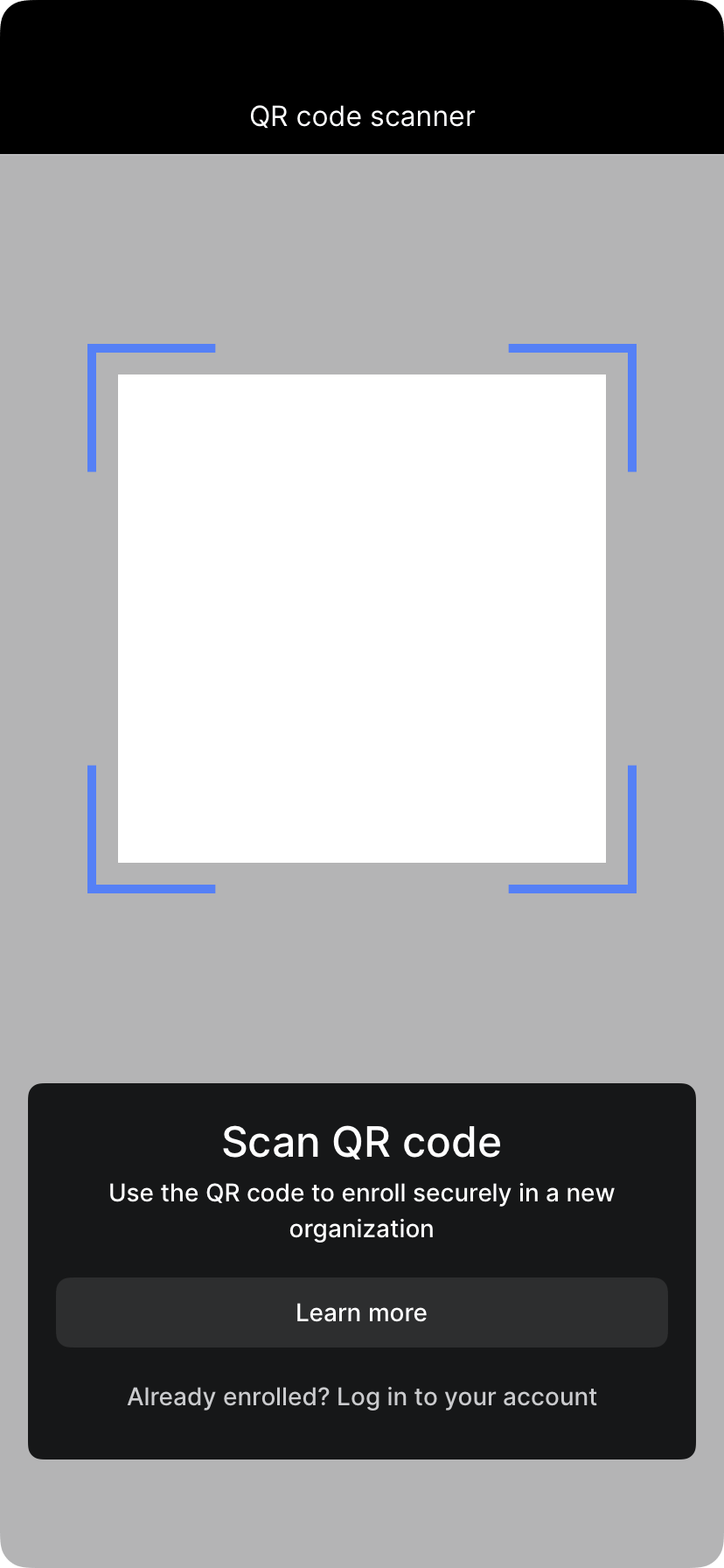
QR code scanner for enrolling a device
Replacing an iPhone with access to your old device
Use this method if you still have access to your old iPhone and can generate a QR code from it.1
Install the app on your new device
If you’re keeping the same Apple ID used for the original download, tap your profile in the App Store, then tap Apps. Search for Anchorage Digital and install. If you’re using a different Apple ID, contact accountexecutive@anchorage.com for the regular download.
2
Initiate replacement on your old device
On your old device, go to Settings, tap Replace my device, and follow the on-screen prompts to generate a QR code.
3
Scan the QR code on your new device
In the Anchorage Digital app on your new device, scan the QR code generated by your old device and follow the instructions.
4
Submit biometric approval
Complete biometric authentication on your old device.
5
Await quorum and Anchorage Digital approval
Ask the quorum administrators to approve the operation. Once quorum is met, Anchorage Digital will review for approval.
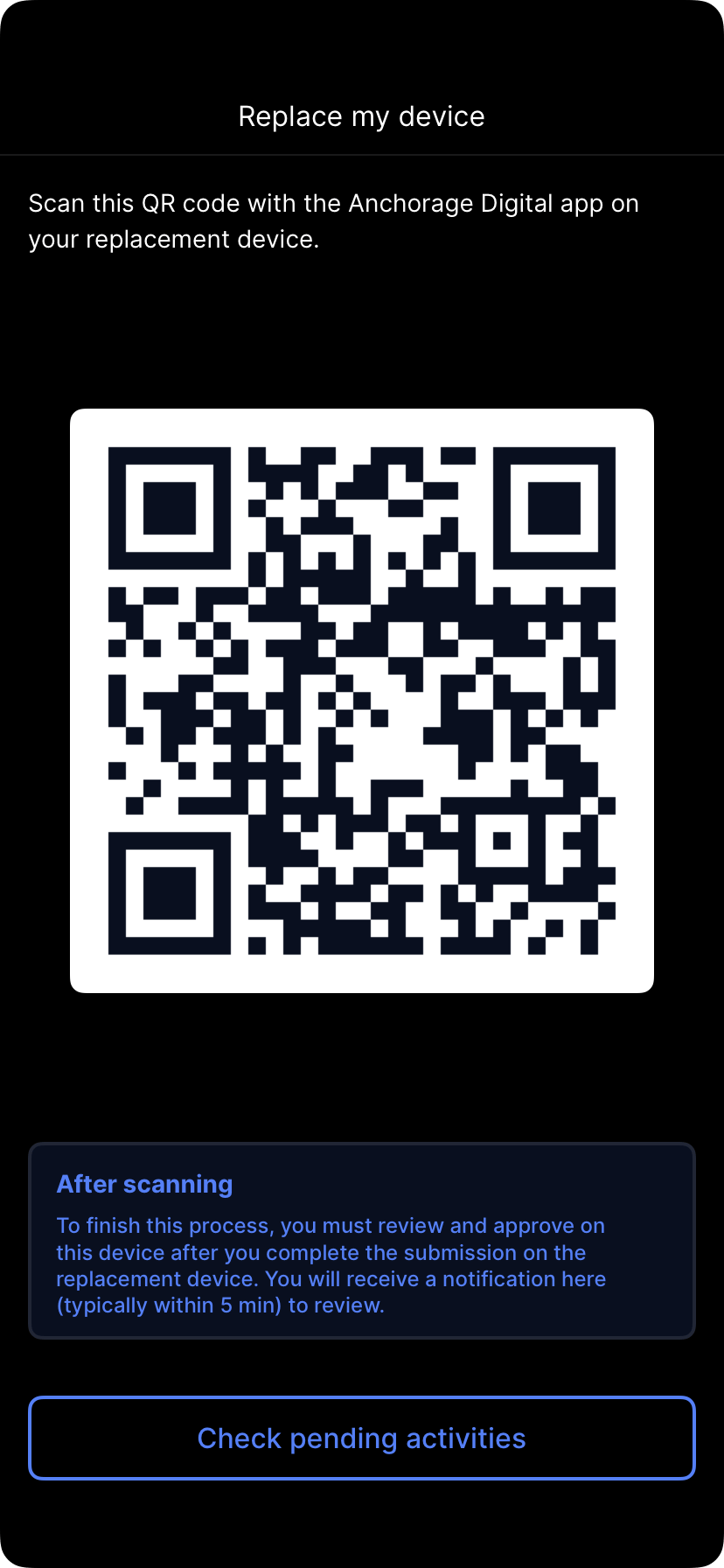
The Replace my device screen
Reinstalling or updating the iOS app
If your organization’s legacy privately distributed app was automatically removed from your device during Anchorage Digital’s migration to the public App Store listing, this isn’t currently a self-serve fix. Contact accountexecutive@anchorage.com or your Relationship Manager so we can restore your access. See Migrating from the private app for background on the migration. If you’re keeping the same Apple ID used for the original download, a reinstall generally isn’t required for a new device. Update the app if needed. See Updating the app. If you’re using a different Apple ID on the new device, contact accountexecutive@anchorage.com to follow the regular download and enrollment process.Notes and tips
- Marking a device as lost prevents its use for approvals. Verify the correct user before proceeding.
- Only administrators with user management permissions can initiate and approve device replacements.
- Keep approvers informed for time-sensitive recoveries so they can act on notifications quickly.
- Permission changes and device replacements require quorum approval according to your organization’s policies. After quorum is met, Anchorage Digital will review for final approval. For help, contact accountexecutive@anchorage.com.