

Downloading the app
You can download and install the Anchorage Digital application directly through Apple’s App Store. Search for “Anchorage Digital,” open the Anchorage Digital App Store listing, or use the link provided by your account executive.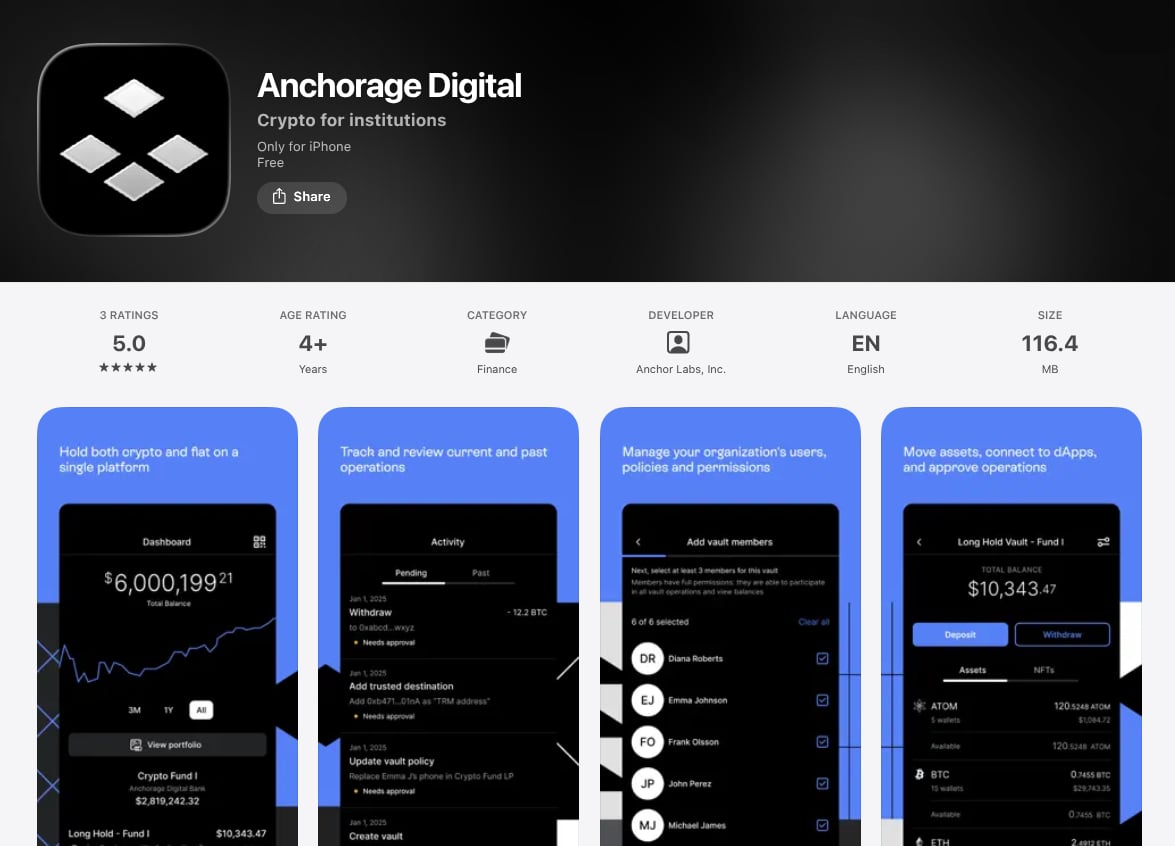
- iPhone: iPhone SE (2nd generation), iPhone XS, and later models
- iPad: iPad (7th generation), iPad mini (5th generation), iPad Air (3rd generation), and later models
Migrating from the private app
Users who installed the Anchorage Digital app via a private link before March 2026 may be on the privately distributed version. Existing private apps remain fully functional and provide the same experience as the public App Store version. However, if you need to install the app on a new device, download it directly from the App Store.If you lose access to any app or need a new install on a new device, download the app directly from Apple’s App Store. To replace your device or move your user to a new phone, see Device and login recovery. If you still have the old device, the transfer is self-serve.
Migration steps
1
Update your current app
Open the App Store, navigate to your account, and update the Anchorage Digital app to the latest version.
2
Verify your app version
Open the updated app and go to Settings. Ensure your version is 2.106.0 or later.
3
Download the public app
Download the Anchorage Digital app from the App Store.
4
Open the public app
Open the newly downloaded public app to get started.
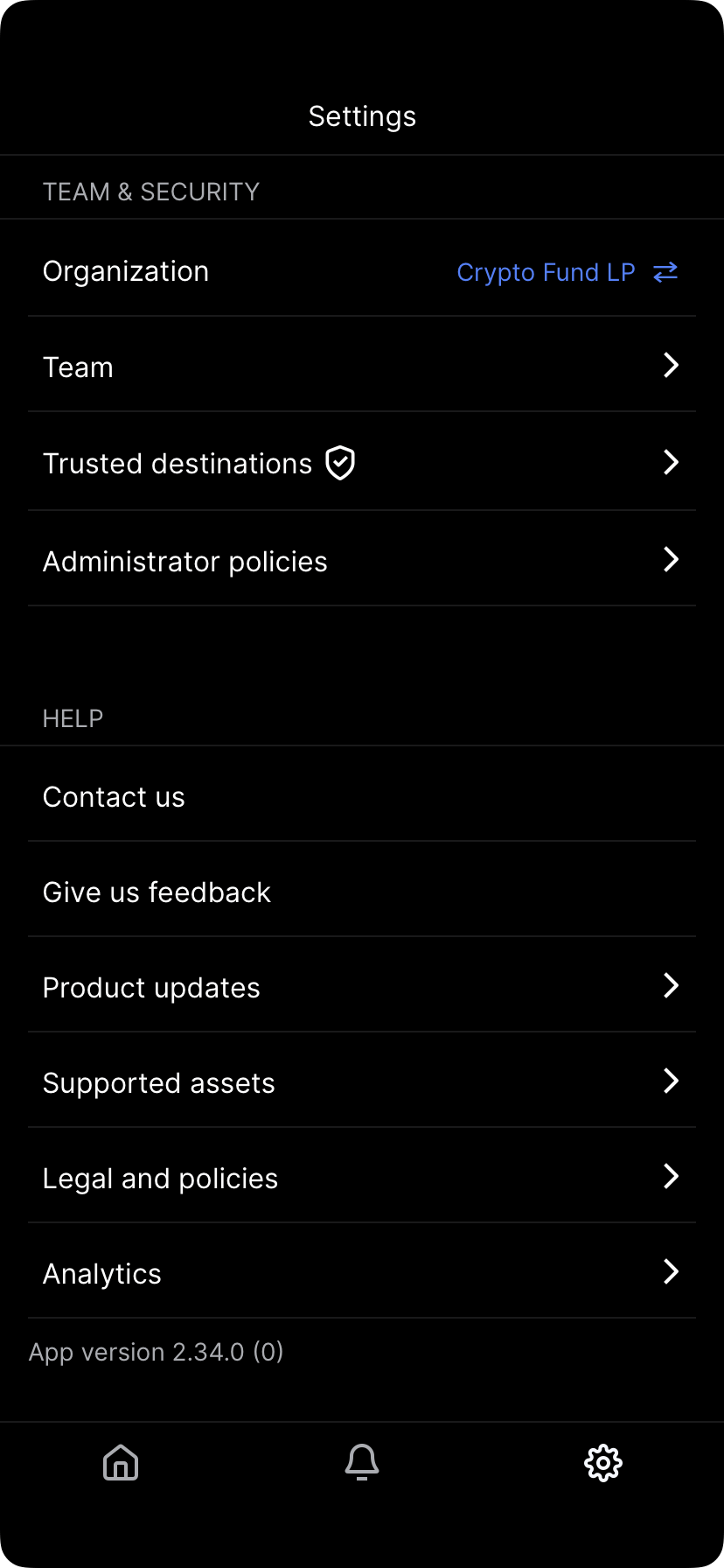
Verifying app version in Settings
Deploying via Apple Business Manager (MDM)
Since the Anchorage Digital app is now public on the Apple App Store, deploying it across your organization’s devices no longer requires anything from Anchorage Digital. Setting up Apple Business Manager (ABM) and your mobile device management (MDM) system is entirely self-serve on your side.This replaces the earlier private-distribution process, which required Anchorage Digital to whitelist your organization in ABM. That process only ever applied to the legacy private app and isn’t needed for the public app.
1
Acquire licenses in Apple Business Manager
Log into your organization’s ABM account and search for “Anchorage Digital” under Apps and Books. Claim the number of licenses you need. The app is free, but ABM still requires claiming a license for each seat.
2
Push the app via your MDM
Once claimed, your ABM account syncs those licenses to your MDM system. This lets your IT team silently install, update, and manage the app on employee devices, with no per-device App Store interaction required.
Downloading the private app (legacy)
This section applies only to the legacy private app. If you’re deploying the public Anchorage Digital app across your organization, see Deploying via Apple Business Manager (MDM) above.
App availability by region
For security reasons, the private app was distributed via the B2B app store, Apple Business Manager (ABM), rather than being publicly available.- If your organization has an ABM account: Anchorage Digital can provide guidance on setting up ABM with Apple.
- If your organization does not have an ABM account: App redemption codes can be generated by the Anchorage Digital ABM account.
Downloading in unsupported countries
If your organization does not have an ABM account and your Apple ID is registered outside the United States:1
Change your Apple ID region
In the App Store, tap the Profile Icon, then your Account Name. Tap Country/Region, then Change Country or Region. Select United States and use Anchorage Digital’s address for billing. This change can be temporary—you may switch back once the app is downloaded.
2
Download the app
Open the download link provided by Anchorage Digital in a Safari browser to initiate the download.
3
Enable automatic updates
Once the download is complete, go to iPhone Settings, tap App Store, and enable Automatic Updates.
Users with Apple IDs linked to Apple subscriptions (e.g., Apple TV) may not be able to change the region. In that case, create a new Apple ID using a different email address.
Creating a new Apple ID (alternative)
If you cannot change your Apple ID region, create a new one:1
Sign out of your current Apple ID
Go to Settings, tap your Apple ID name and avatar, then tap Sign Out.
2
Create a new Apple ID
Tap Don’t have an Apple ID or forgot it?, then Create Apple ID. Use an email address different from the one already in use and follow the prompts.
3
Verify your email
Check for a verification email from Apple and verify your new email address.
4
Download the app
Tap the download link on your iPhone to initiate the download.
Updating the app
By default, most iOS apps are configured to receive automatic updates. To manually update or force an immediate update:1
Open the App Store
Launch the App Store on your iPhone.
2
Access your account
Tap your profile icon (avatar) in the top-right corner of the screen.
3
Navigate to apps
Tap Apps to see a list of your applications.
4
Check for updates
Scroll down to find the Anchorage Digital app. If an update is available, an Update button will appear next to the app name.
5
Install the update
Tap Update to begin the download.
If the app won’t connect or unlock
An app that hangs on the loading screen, won’t unlock, or reports a connection error is usually running into a network problem rather than an account problem. Work through these checks in order:- Turn off VPNs and proxies — an active VPN, proxy, or iCloud Private Relay can disrupt the app’s secure connection.
- Check for an app update — an outdated version can cause connection and endorsement errors. See Updating the app.
- Force-close and reopen the app — close it fully rather than leaving it in the background.
- Switch networks — try cellular data with Wi-Fi turned off, or a different Wi-Fi network. A local connectivity problem is a common cause.
- Restart your iPhone — a full restart, not just closing the app.