Group multiple operations for combined approval and streamlined quorum requirements.
You’re viewing Porto documentation — a distinct product from Anchorage Digital’s core custody platform. Go to Anchorage Digital docs →
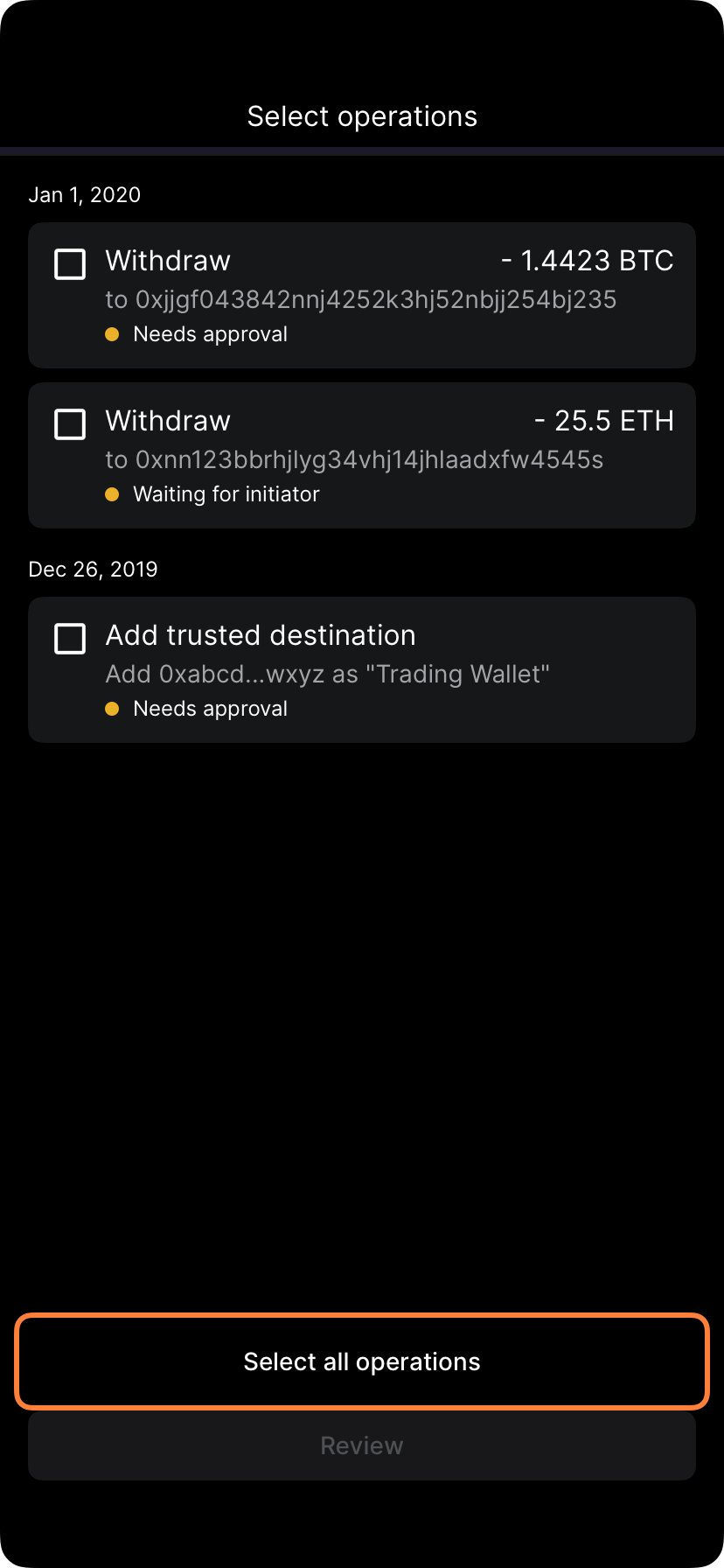
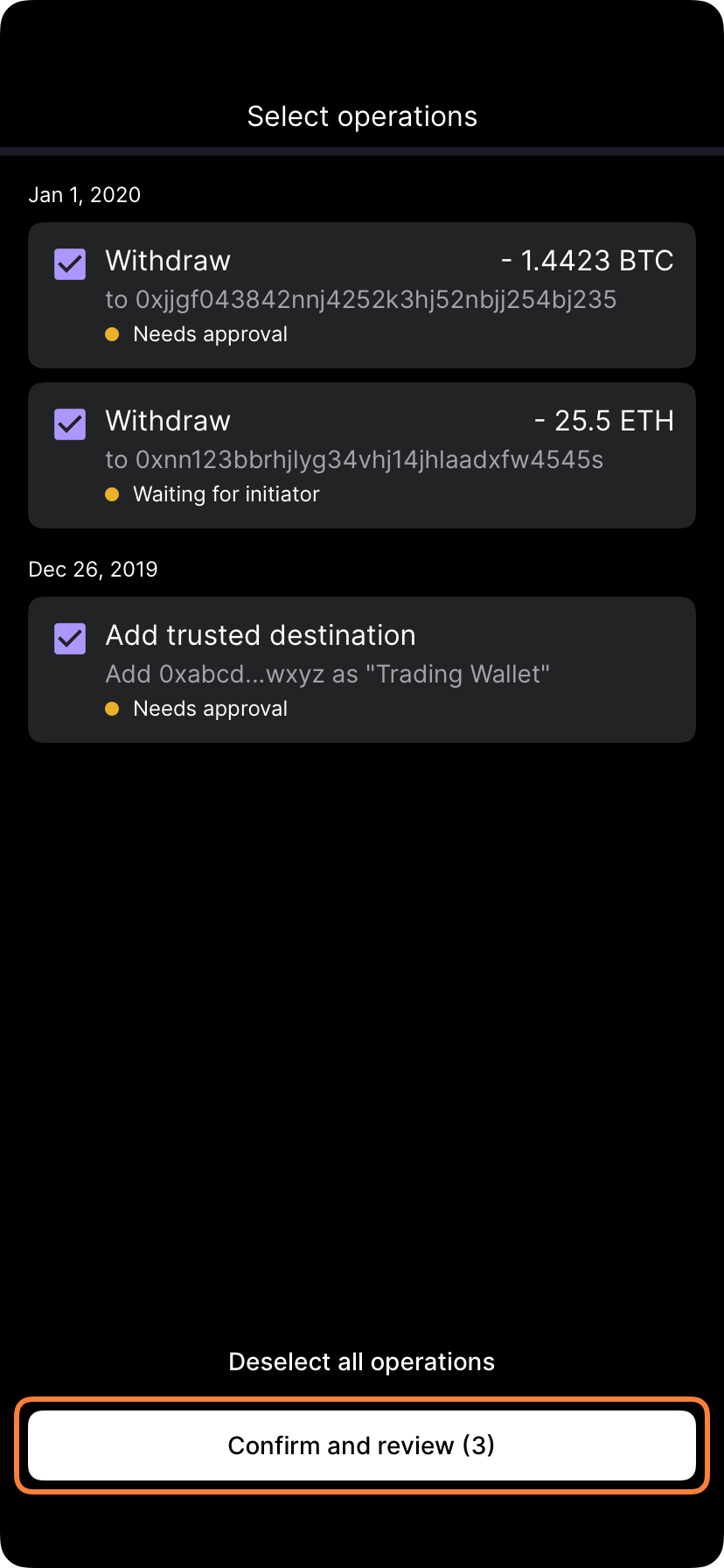
Batch endorsements let you group multiple operations (withdrawals, transfers, or policy changes) together and submit them for a single combined approval instead of individual approvals. This streamlines workflow and can reduce approval overhead for repeated operations.
From your vault, select the asset and begin initiating a withdrawal or transfer.
2
Look for batch option
During the operation flow, look for Add to batch, Batch endorsement, or Group operations. Tap it.
3
Create batch
Select Create new batch or Add to existing batch. If new, name it (e.g., “Daily vendor settlements”).
Creating a new batch
4
Complete first operation details
Enter the destination, amount, and other details for the first operation.
5
Save to batch
Tap Add to batch instead of Submit for approval. The operation is saved but not submitted.
6
Add more operations
Repeat the process for each additional operation you want to batch together.
Batch operations screen
7
Review batch
Once you’ve added all operations, review the full batch to confirm all details.
8
Submit batch for approval
Tap Submit batch or Request approval. The entire batch is submitted at once.
Batch submission screen
9
Approve if authorized
If you have approval permissions, complete biometric authentication to approve the full batch.
Batch approval confirmation
Operations in a batch must be compatible. You typically cannot mix different types (e.g., withdrawals and policy changes) in a single batch. Check your organization’s batch policies for details.
Go to Activity or Pending approvals and find the batch awaiting approval.
2
Review all operations
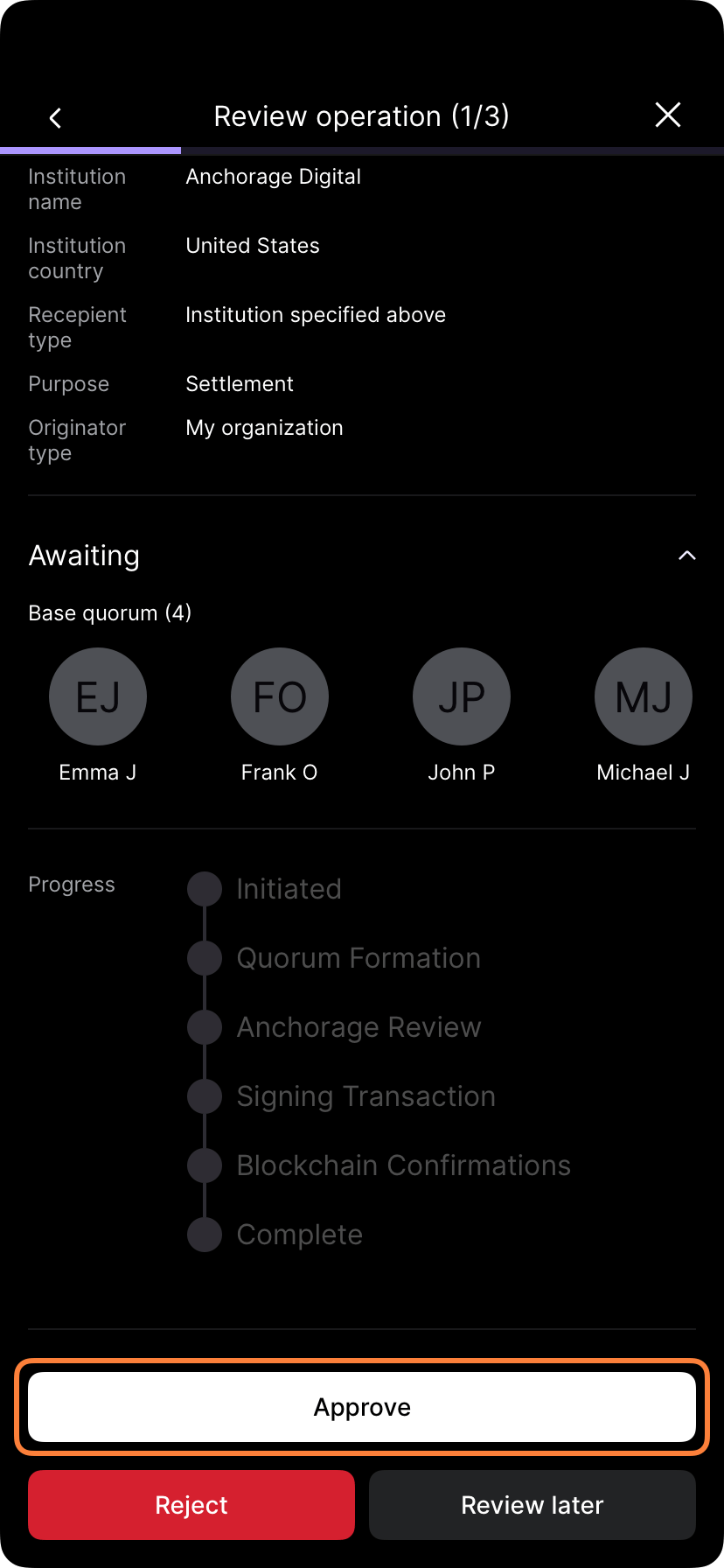
Expand the batch to see every operation. Verify:
All destinations are correct
All amounts are accurate
No suspicious or unintended operations
3
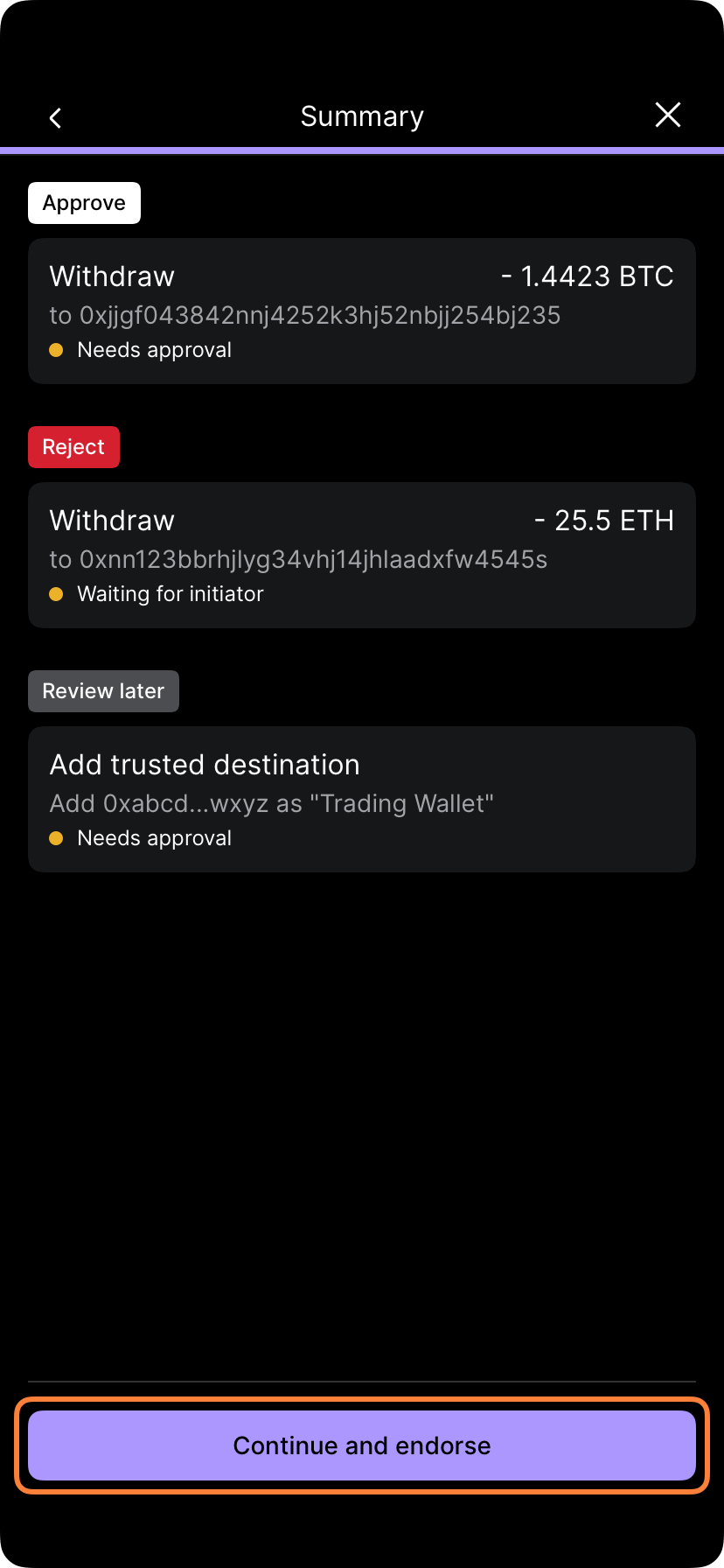
Approve the batch
If all looks correct, tap Approve batch or Endorse.
4
Biometric authentication
Complete Face ID or Touch ID to authorize approval of the full batch.
5
Operations execute
Once the batch has the required approvals, all operations execute in order.
Review every operation in a batch carefully. If even one operation is unintended or fraudulent, rejecting the entire batch may be necessary. There’s no way to approve part of a batch — it’s all or nothing.
If you haven’t submitted a batch yet, you can edit it:
1
Find the pending batch
Go to Pending batches or Draft operations.
2
Select the batch
Tap the batch you want to edit.
3
Edit operations
You can:
Modify amounts or destinations in operations
Remove operations from the batch
Add new operations
4
Resubmit when ready
Once edits are complete, tap Submit batch to send it for approval.
Once a batch is submitted for approval, individual operations cannot be edited. If you need to change something, the batch must be rejected and resubmitted.