When to edit rules
Consider editing rules when:- Business needs change — You handle larger or smaller transactions
- Organization grows — You hire more approvers or change roles
- Thresholds need adjustment — Amount limits are too high or low
- Rules aren’t working — A rule is creating bottlenecks or isn’t specific enough
- Compliance changes — New regulatory requirements necessitate policy changes
Edit a rule
1
Open policy
Go to Settings > Policies > Vault policy or Admin policy.
2
View all rules
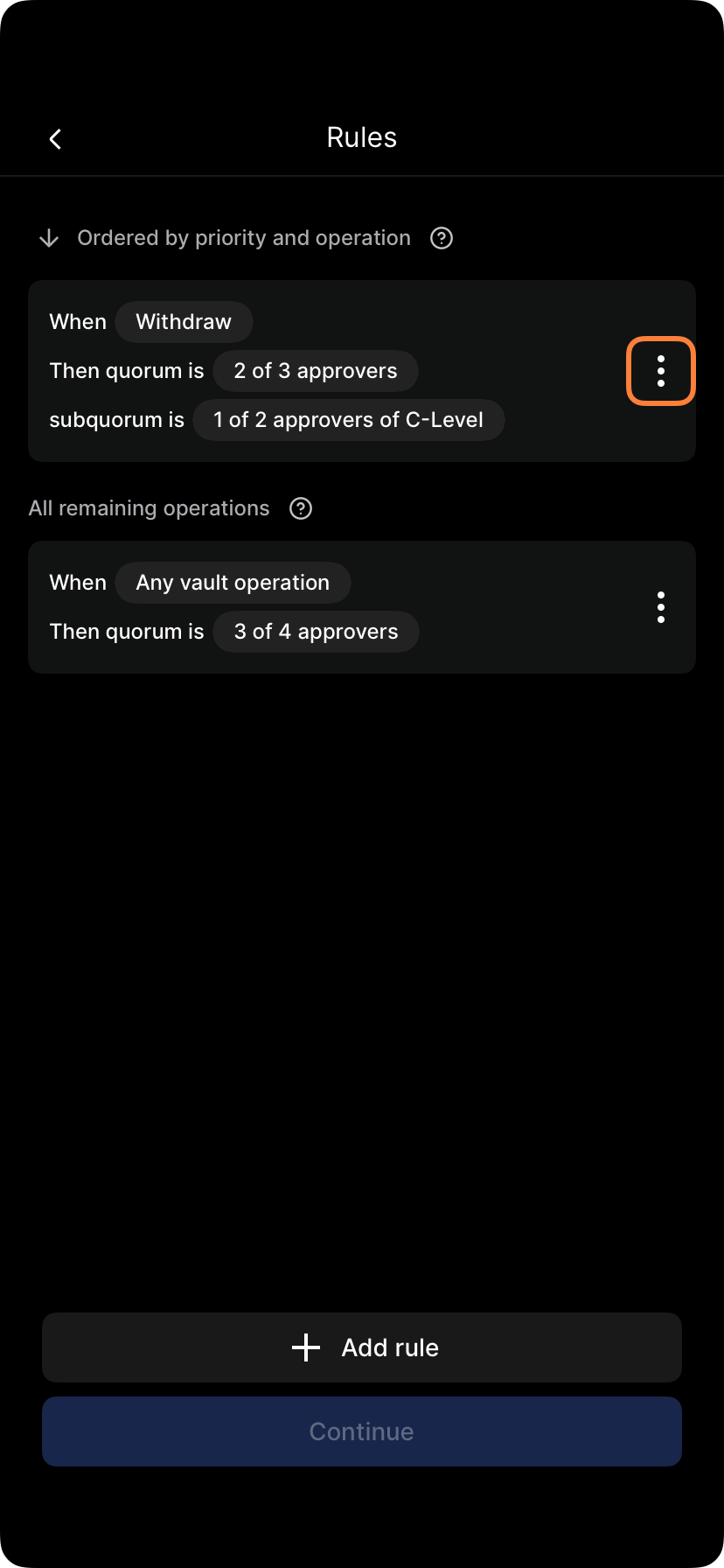
You’ll see a list of all active rules. Rules are shown in priority order (most specific first).

3
Select the rule to edit
Tap the rule you want to modify.
4
Tap edit
Select Edit rule or the pencil icon.
5
Change conditions
Modify any conditions:
- Operation type
- Amount thresholds
- Address types
- Time windows
- Initiator roles
6
Change approval requirements
Update:
- Number of approvers
- Which approvers (specific people or roles)
- Voting structure
- Approval timeout

7
Save changes
Tap Save or Update rule.
8
Submit policy changes
Tap Submit policy or Apply changes. Modified rules take effect.
9
Approve if required
If your policy requires approval for policy changes, the edit must be approved.
Common edits
Adjust amount thresholds
If your transaction volume increases, you might adjust thresholds upward: Before:- Up to $50,000: 1 approver
- 200,000: 2 approvers
- Over $200,000: 3 approvers
- Up to $100,000: 1 approver
- 500,000: 2 approvers
- Over $500,000: 3 approvers
Change approver requirements
If you add new approvers, you can adjust requirements: Before: 2 of 2 (CEO + CFO) must approve large withdrawals After: 2 of 3 (CEO, CFO, or COO) Edit the rule to change the approver list and count.Make rules stricter
If security incidents increase approval requirements: Before: 1 approver for deposits After: 1 approver for deposits under 100k+ Split the rule into two rules or add amount condition to existing rule.Make rules faster
If approvals are too slow, reduce requirements: Before: 3 of 3 admins must approve transfers After: 2 of 3 admins must approve transfers Edit the rule to reduce from 3 to 2 approvers.Rule priority after editing
When you edit a rule that changes its specificity, rule priority may shift. For example: Original rule: “Withdrawals > $100k to new address” = 2 approvers After edit: “Withdrawals > $100k” = 1 approver (removed address condition) Now the rule is less specific. If another rule says “Withdrawals to new address” = 2 approvers, that rule becomes more specific and takes priority for withdrawals over $100k to new addresses. Solution: Review all rules after editing one to ensure priority is what you intend.Editing without disruption
To edit a rule while minimizing disruption:- Review affected operations — See what operations the current rule applies to
- Create new rule — Add a new rule with desired conditions
- Test the new rule — Verify it works as expected
- Deactivate old rule — Remove the old rule once new rule is working
- Audit trail — The change is recorded showing old and new rules
Before/after rule changes
Document the change:
Keep this record for compliance and future reference.
Approval of rule changes
Rule edits themselves require approval:- Who approves: Typically the same policy that governs vault operations
- Timing: Rule changes must be approved before taking effect
- Notice: Users should be notified of upcoming rule changes
Testing rule changes
Before finalizing edits:- Simulate operations — Review how the new rule would apply to recent transactions
- Check for conflicts — Ensure the edited rule doesn’t conflict with other rules
- Verify priority — Confirm the rule applies in the right order relative to other rules
- Calculate impact — How many operations will be affected? Will approvals speed up or slow down?
Rolling back edits
If an edited rule causes problems:- Revert to previous version — Many systems allow rolling back recent changes
- Create new rule — Alternatively, create a new rule and deactivate the problematic one
- Notify users — Let them know the rule has changed
- Document reason — Record why the change was reverted
Preventing rule conflicts
When editing rules, watch for conflicts: Conflict example:- Rule A (before edit): “Withdrawals > $100k” = 2 approvers
- Rule B: “Withdrawals to trusted destinations” = 1 approver
- Edit Rule A to: “Withdrawals to new addresses” = 3 approvers
- Rule A applies (more specific: amount + address + new)
- This is correct — highest specificity wins
Communicating rule changes
When you edit rules, notify affected users:- What changed — Be specific about which rules were modified
- Why it changed — Explain the business reason
- Effective date — When does the new rule take effect?
- Impact — How will this affect operations? Will approvals be faster/slower?
- Examples — Provide examples of how operations are affected
Audit trail of edits
All rule edits are recorded:- Who changed it — The user who made the edit
- When — The exact time and date
- What changed — Detailed diff of conditions and requirements
- Approval — Who approved the rule change
Rule maintenance schedule
Establish a regular maintenance schedule:- Quarterly: Review rules to ensure they still align with business needs
- After incidents: Review rules if security issues occur
- After org changes: Update rules when team structure or approvers change
- After business changes: Adjust thresholds if transaction volume changes significantly