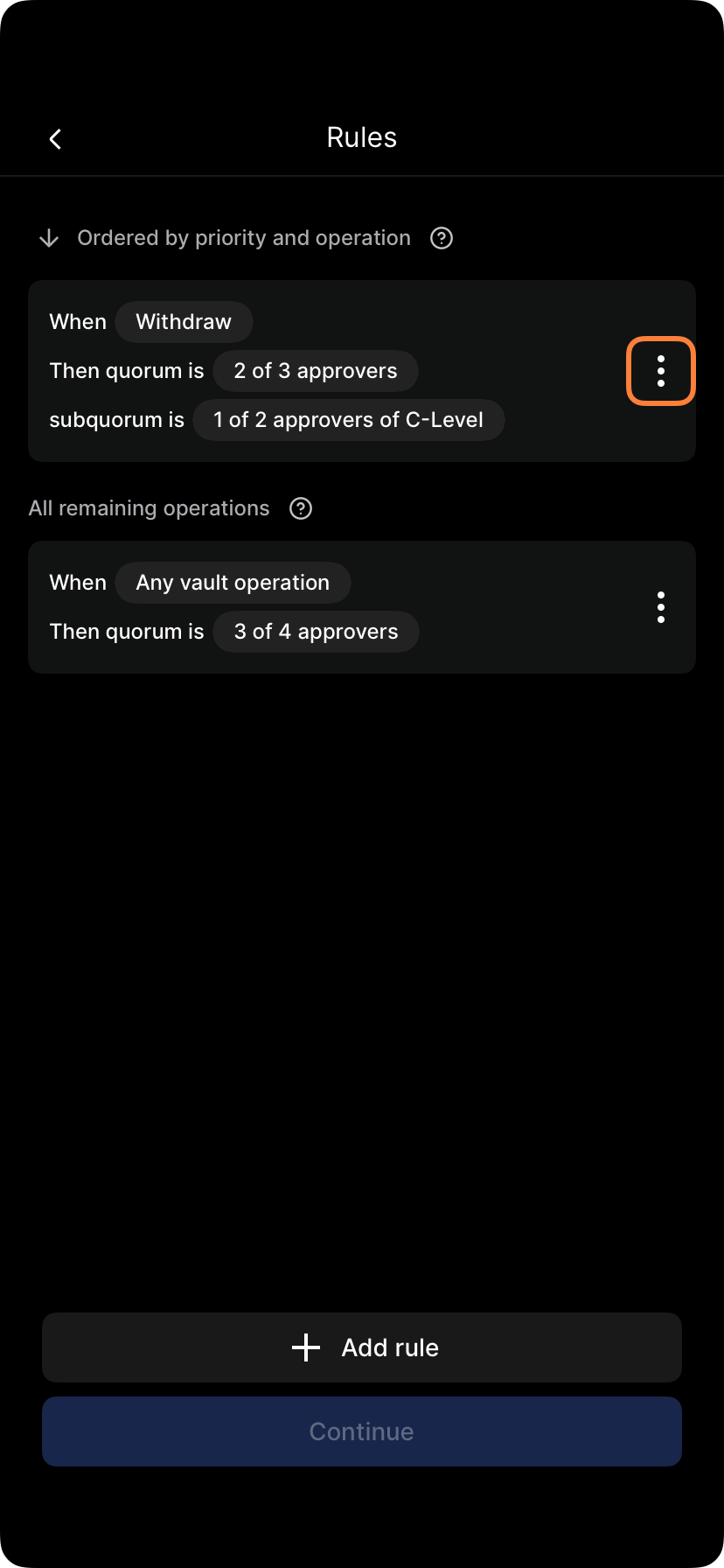
Rules define specific approval requirements for operations in your vault or organization. By adding rules, you can create fine-grained control over who must approve which operations and under what conditions.

What is a rule

A rule is a set of conditions that triggers specific approval requirements:
  • When: Conditions that must be met (operation type, amount, address type, etc.)
  • Then: Approval requirements (who must approve, how many, etc.)
Example rule:
  • “When: A withdrawal over $100,000”
  • “Then: 2 of 3 senior officers must approve”

Types of rules you can create

Adding a rule

1

Open policy

Go to Settings > Policies > Vault policy or Admin policy.
Vault policy screen showing list of existing rules
2

Tap add rule

Select Add rule, Create rule, or New rule.
3

Define conditions

Specify when this rule applies. Check all that apply:
  • Operation type: What operation triggers this rule?
  • Amount: Any amount, or only amounts above/below certain thresholds?
  • Recipient: Any address, only trusted destinations, only new addresses?
  • Time: Any time, business hours only, weekdays only?
  • Initiator role: Any role, specific roles only?
4

Leave conditions blank to match all

If you don’t specify a condition, the rule applies regardless of that factor.
  • Leave amount blank = applies to any amount
  • Leave recipient blank = applies to any address
5

Define approval requirements

Specify who must approve:
  • Number of approvers: 1, 2, 3, all, etc.
  • Approver selection: Any approver, specific role, specific person
  • Voting rule: Simple majority, unanimous, weighted, etc.
6

Set approval timeout

How long before the approval request expires:
  • Short (4-12 hours): For time-sensitive operations
  • Standard (24 hours): Most common
  • Long (48-72 hours): For less urgent approvals
7

Save the rule

Tap Save or Create rule.
8

Submit policy changes

Tap Submit policy or Apply changes. The new rule becomes active.
9

Approve if required

If your vault or admin policy requires approval for policy changes, the rule change must be approved.

Rule examples

Example 1: Amount-based rule

Condition: Withdrawal amount
  • Up to $10,000: 1 approver needed
  • 10,00110,001 - 100,000: 2 approvers needed
  • Over $100,000: 3 approvers needed
Configuration:
  • Create 3 rules with overlapping amount ranges
  • Each rule specifies the approval threshold

Example 2: Address-based rule

Condition: Recipient address type Configuration:
  • Rule 1: If recipient in trusted destinations, 1 approver
  • Rule 2: If recipient not in trusted destinations, 2 approvers

Example 3: Combined rule

Condition: Withdrawal > $50,000 to new address
  • Then: 2 of 3 CFO, COO, CEO must approve
Configuration:
  • Amount > $50,000
  • Recipient = new address (not pre-approved)
  • Approvers = 2 of {CFO, COO, CEO}

Example 4: Time-based rule

Condition: Large withdrawal during non-business hours
  • Then: Requires 3 approvers (extra scrutiny outside business hours)
Configuration:
  • Amount > $X
  • Time = outside 9 AM - 5 PM weekdays
  • Approvers = 3 required

Rule priority and conflicts

If multiple rules could apply to the same operation, the most specific rule wins: Rule priority (most to least specific):
  1. All conditions specified (operation + amount + address + time)
  2. 3 conditions specified
  3. 2 conditions specified
  4. 1 condition specified
  5. No conditions specified (default rule)
Example:
  • Rule A: “Withdrawals over $100k” = 2 approvers
  • Rule B: “Withdrawals to new addresses” = 2 approvers
  • Rule C: “Withdrawals over $100k to new addresses” = 3 approvers (this rule wins)
For a $150k withdrawal to a new address, Rule C (most specific) applies.

Default rules

Every policy should have a default rule with no conditions — this applies when no other rule matches:
  • Default rule: “All withdrawals not covered by other rules” = 1 approver
  • Purpose: Catch any operation not covered by other rules
  • Recommendation: Set default to your standard approval requirement

Draft rules and testing

Before making a rule active, you can:
  1. Create as draft — Save it without activating
  2. Test it — See how it would apply to recent operations
  3. Refine — Adjust thresholds or requirements
  4. Activate — Make it official
Some systems don’t support draft mode — you may need to activate immediately.

Common mistakes to avoid

Mistake 1: Overlapping rules with different requirements
  • Solution: Be specific with conditions; avoid creating conflicting rules
Mistake 2: No default rule
  • Solution: Always create a default rule to catch operations not covered by specific rules
Mistake 3: Rules that never match
  • Example: Rule for “withdrawals over $1 million” in a vault that never handles amounts that large
  • Solution: Review rules quarterly and remove ones that never apply
Mistake 4: Too many approvers required
  • Solution: Creates bottlenecks; use tiered approvals based on risk
Mistake 5: Time-based rules that are too narrow
  • Example: Rule that applies only 10 AM - 11 AM weekdays
  • Solution: Use broader time windows or avoid time-based rules unless necessary

Rule documentation

When creating rules, document:
  • Why: Why is this rule necessary? What risk does it address?
  • When: Under what conditions does it apply?
  • Approval: Who must approve, and why?
  • Changes: When was it created/modified?
  • Owner: Who is responsible for this rule?
This documentation helps future administrators understand and maintain rules.

Managing rules over time

Rules should be reviewed quarterly:
  1. Check effectiveness — Are the rules achieving their purpose?
  2. Spot trends — Do new operation patterns suggest new rules are needed?
  3. Remove unused rules — If a rule never applies, delete it
  4. Adjust thresholds — If business volume changes, update amount thresholds
  5. Communicate changes — Let users know about new/modified rules
See Editing rules and Deleting rules for modification instructions.